Canva is the design tool most small businesses already have open in a browser tab. What has changed is how much of it is now AI. In 2026 Canva rebuilt itself around Canva AI 2.0, a conversational assistant that can draft a whole design from a sentence, pull context from your Gmail or Slack, research the web, apply your brand, and run tasks on a schedule. It also launched Magic Layers, which turns a flat image into editable layers, and made the professional design app Affinity free. Underneath all of it sits a monthly AI allowance that most users never read about until they hit it.
This Canva AI review is written for small business owners and marketers deciding whether Canva’s AI is worth paying for, which plan to choose, and how to get real work out of it. It covers every major AI feature, the real pricing and AI limits from Canva’s own pages, how your data is handled, who owns what you create, how Canva compares with Adobe Express, Gamma, and dedicated AI image tools, and step-by-step workflows you can copy. It also includes a plan cost calculator, an AI allowance estimator, a plan picker, and a library of prompts you can paste straight into Canva AI.
In this review
- Executive Summary
- Quick Verdict
- What Is Canva?
- How We Evaluated Canva AI
- What’s New in Canva AI in 2026
- Canva AI Features: The Complete Breakdown
- How Canva’s AI Allowance Works
- Canva Pricing in 2026
- Which Canva Plan Should You Choose?
- Step-by-Step Canva AI Workflows for Small Businesses
- Canva AI for Social Media Marketing
- Canva AI for Presentations, Proposals, and Sales Materials
- Canva AI for Print and Local Marketing
- Canva AI for Video
- Your First 30 Days With Canva AI
- Setting Up Canva Business for a Team
- Example: One Week of Marketing With Canva AI
- Using Canva AI on Your Phone
- Real Business Use Cases by Industry
- Canva AI Prompt Library
- Canva Docs, Whiteboards, Websites, and Sheets
- Canva Apps Marketplace and Integrations
- Data Privacy, Security, and Canva Shield
- Who Owns What You Create With Canva AI?
- User Experience: What Canva Is Like to Use
- Limitations to Know Before You Rely on Canva AI
- Accessible Design in Canva
- Canva Designs and Your Website’s SEO
- Example Cost Scenarios
- Canva AI Glossary
- Is Canva AI Safe for Client Work? A Checklist
- How We Scored Canva AI
- What Canva AI Could Do Better
- Questions to Ask Before You Upgrade
- Responsible Marketing With Canva AI
- Getting the Most From Each Canva Plan
- Measuring the Time Canva AI Saves You
- How Canva AI Compares
- Customer Support and What Users Say
- Pros and Cons
- Common Mistakes to Avoid
- Expert Tips to Get More From Canva AI
- Frequently Asked Questions
- The Bottom Line by Business Type
- Final Verdict
- How We Keep This Review Current
- Sources and References
Canva AI 2.0. Source: Canva, official image.
Executive Summary
Last reviewed
October 13, 2026
Next review
November 2026
Our score
8.5 / 10
Sources
Canva docs, newsroom, user reviews
Canva is a browser-based design platform for social graphics, presentations, documents, videos, websites, print materials, and now spreadsheets and simple interactive apps. Canva reported 265 million monthly active users, 31 million paid subscribers, and $4 billion in annualized revenue by the end of 2025, according to figures reported by CMSWire around its April 2026 Canva Create event. Its AI tools have been used more than 27 billion times, by the same report.
For a small business, the headline is that Canva’s AI is no longer a set of separate “Magic” buttons. It is a single assistant that sits on top of everything Canva does, plus a growing list of specialist tools. The free plan includes a small taste of it: up to 20 Standard or Premium AI uses a month. Canva Pro, at US$144 a year for one person on annual billing, raises that to up to 200 Premium AI uses or 20 Ultra AI uses a month, and includes the tools most businesses actually use every day, such as background removal, resizing, translation, and Magic Write. Canva Business, at US$250 a year per person on annual billing, doubles the AI allowance, adds 500GB of storage and up to 100 Brand Kits, and is built for teams. Heavy AI users can add an AI Pass for US$100 per person per month.
The short version of this Canva AI review: Canva is the best all-round design tool for most small businesses, and its AI genuinely saves time on the repetitive parts of marketing design: resizing, rewriting, removing backgrounds, building first drafts, and keeping everything on brand. The weaknesses are real but manageable. The AI allowance is confusing and easier to exhaust than the marketing suggests, AI-generated designs still need a human eye, the newest Canva AI 2.0 features rolled out gradually after launch, and anyone who needs precise professional design control will still want a dedicated tool (which, conveniently, Canva now gives away in Affinity).
Quick Verdict
| Category | Rating and notes |
|---|---|
| Overall rating | 8.5 / 10 |
| Ease of use | 9.5 / 10. The easiest serious design tool on the market; Capterra reviewers rate ease of use 4.7 out of 5 |
| Design features | 9 / 10. Templates, stock, brand kits, video, presentations, docs, sheets, websites, and print in one place |
| AI features | 8 / 10. Broad and genuinely useful; conversational design is impressive but still needs editing, and limits are confusing |
| Pricing value | 8.5 / 10. Pro is excellent value for one person; Business is fair for teams; AI Pass is expensive |
| Privacy and safety | 8 / 10. Business, Enterprise, and Education content is never used to improve AI; individuals control it in settings |
| Customer support | 7 / 10. Strong help center; Trustpilot reviews show recurring billing and support complaints |
Best for: small businesses that produce a steady stream of social posts, ads, presentations, flyers, and documents, and want one tool that a non-designer can use without training.
Not ideal for: professional designers who need pixel-precise vector work, layered source files for print shops, or advanced photo retouching. Canva now offers Affinity for free for exactly that work, but it is a separate app with its own learning curve.
What Is Canva?
Canva was founded in 2013 in Australia by Melanie Perkins, Cliff Obrecht, and Cameron Adams, with a simple idea: design should not require years of training or expensive desktop software. It started as a drag-and-drop editor for social graphics and presentations, built around templates. Thirteen years later it is closer to a full visual workspace. A single Canva account now covers:
- Designs: social posts, ads, flyers, posters, logos, business cards, menus, invitations, and thousands of other formats, built from more than 3.6 million templates on paid plans.
- Presentations: slide decks with presenter view, recording, and AI drafting.
- Docs: visual documents for proposals, reports, and one-pagers.
- Whiteboards: collaborative brainstorming boards.
- Videos: a timeline video editor with stock footage, music, captions, and AI video and audio tools.
- Websites: simple one-page sites and link-in-bio pages.
- Sheets: visual spreadsheets with AI formulas and insights.
- Canva Code: small interactive tools, calculators, quizzes, and forms built from a prompt.
- Print: printing and delivery of business cards, flyers, signs, apparel, and packaging through Canva Print and the 2026 Print Shop.
- Affinity: a free, professional-grade desktop app for photo editing, vector illustration, and page layout, which Canva acquired in 2024 and made free in October 2025.
On top of all of this sits Canva AI. In older articles you will see the AI tools described as Magic Studio, with separate names like Magic Design, Magic Edit, Magic Eraser, and Magic Expand. Canva has since folded most of these into a single Canva AI experience, keeping a few “Magic” names (Magic Write, Magic Layers, Magic Formulas, Magic Background, Magic Animate) for specific tools. If a tutorial mentions a tool name you cannot find, it has most likely been merged into Canva AI or the photo editor.
Who Canva is built for
Canva’s sweet spot is the person who needs good-looking visual content regularly but is not a trained designer: the owner of a bakery making weekly specials, a real estate agent preparing listing graphics, a consultant building proposal decks, a nonprofit coordinator making event flyers, or a two-person marketing team at a growing ecommerce brand. For these users, the combination of templates, brand controls, and AI turns tasks that used to take an hour into tasks that take ten minutes.
Professional designers use Canva too, mainly for speed and for handing off editable templates to non-designers on a team. But Canva is not trying to replace precise professional tools for complex work, and this Canva AI review treats that as a feature of the product, not a flaw: it is designed to be easy first.
How We Evaluated Canva AI
Every review on VeyronIQ is built to answer one question: should a small business pay for this, and if so, how should they use it? For this Canva AI review we:
- Read Canva’s own documentation first. Pricing, plan limits, AI allowance rules, AI Pass terms, privacy commitments, and the AI Product Terms all come directly from Canva’s pricing page, Help Center, Trust Center, and legal pages as they stood in October 2026.
- Reviewed every major 2026 announcement from Canva’s newsroom, including Canva AI 2.0, Magic Layers, and the Canva Create 2026 launches, and cross-checked dates and figures against independent coverage.
- Analyzed what real users report in public review data: Capterra’s verified reviews and Trustpilot’s reviews, including the negative ones.
- Mapped features to small business jobs: social media, ads, presentations, print, brand consistency, video, documents, and simple web tools, with step-by-step workflows for each.
- Compared alternatives we have already reviewed on this site, including Gamma for presentations and Midjourney for AI images, plus Adobe Express as Canva’s closest direct competitor.
Where Canva’s documentation is vague or inconsistent, we say so. Where a figure comes from a third party rather than Canva, we name the source. Prices, limits, and features change often, so the status card above shows when this review was last checked, and we review it monthly.
A note on names
Canva’s plan names have changed over time. Canva Teams was the long-running team plan; Canva Business is the current team plan for new customers, priced per person. Some existing customers are still on Teams plans, and Canva’s Help Center treats Pro, Teams, and Nonprofits the same way for AI allowance purposes. This review uses the names on Canva’s current pricing page: Free, Pro, Business, and Enterprise.
What’s New in Canva AI in 2026
2026 has been the biggest year of change for Canva’s AI since the company first added generative tools. If you last looked at Canva a year ago, these are the developments that matter for a small business.
Canva AI 2.0 was announced at Canva Create 2026 in April. Source: Canva, official image.
Canva AI 2.0 (April 2026)
At its Canva Create event in Los Angeles in April 2026, Canva launched Canva AI 2.0, which it called its biggest product launch since the company started in 2013. Canva AI 2.0 turns Canva from an editor with AI buttons into what Canva calls an agentic creative platform. In practice, that means:
- Conversational design. You describe what you need (“a launch campaign for our new cold brew, with an Instagram post, a story, and an email header”) and Canva AI builds editable designs with layout, hierarchy, and your brand applied. You refine them by chatting or by editing manually.
- Agentic orchestration. Instead of one tool doing one task, Canva AI coordinates several of Canva’s tools to complete a multi-step request.
- Layered object intelligence. Outputs are built from individual editable objects, so a change affects only the element you asked about, rather than regenerating a whole flat image.
- Memory Library. Canva AI keeps persistent memory of your preferences, brand styles, and past projects, and applies them to new work.
- The Canva Design Model. Canva describes this as its own foundation model built for real-world design, trained to understand the structure and hierarchy of a layout. It powers the conversational design features and Magic Layers.
Canva AI 2.0 also introduced six new workflows:
| Workflow | What it does | Why it matters for a small business |
|---|---|---|
| Connectors | Pulls context from Slack, Gmail, Google Drive, Google Calendar, Notion, Zoom, HubSpot, Microsoft, Atlassian, and Linear | Build a design from a real email thread, meeting, or CRM record instead of retyping details |
| Scheduling | Runs Canva AI tasks in the background on a set or recurring schedule, creating drafts for review | Draft next week’s social posts every Friday without remembering to start |
| Web research | Gathers information from the web into a design as editable content | Turn a trend or topic into a carousel or one-pager with researched points |
| Brand Intelligence | Applies brand fonts, colors, and rules, and can update existing designs to the latest brand | Keeps every team member on brand, and makes rebrands far less painful |
| Canva Code 2.0 | Builds interactive, responsive experiences from prompts and supports HTML import; forms can collect responses into Canva Sheets | Make a quote calculator, quiz, or sign-up form without a developer |
| Sheets AI | Generates structured, populated spreadsheets from a description | Spin up a content calendar, budget tracker, or event plan in seconds |
Canva launched Canva AI 2.0 as a research preview for a limited group of users (CMSWire reported a cap of up to one million users at launch), with general availability rolling out in the following weeks. On Canva’s pricing page in October 2026, Canva AI 2.0 is listed on the Free, Pro, and Business plans, with Enterprise marked “Soon”, and the conversational design feature is classified as an Ultra AI tool, which matters for how quickly it uses your allowance. More on that in the AI allowance section below.
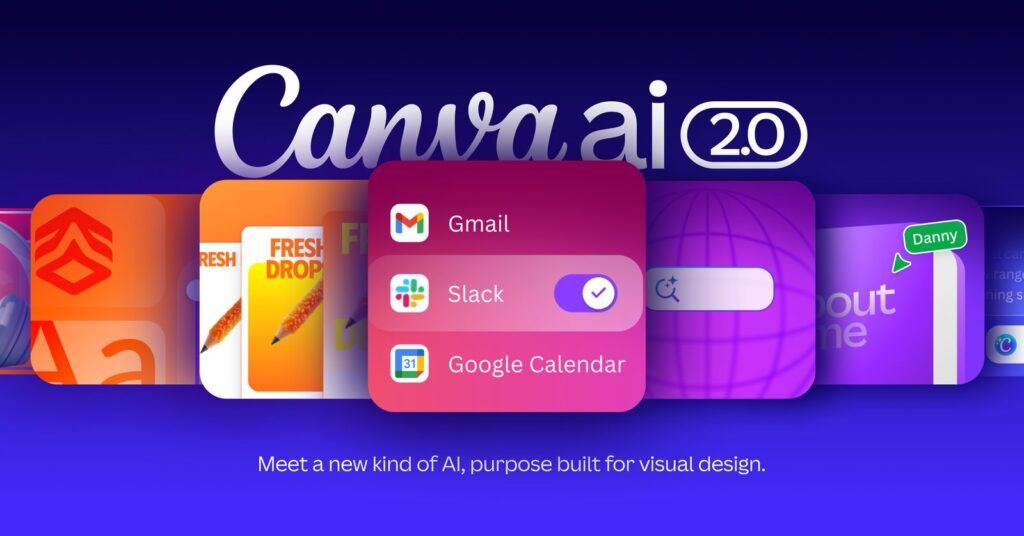
Canva AI 2.0 connectors bring in context from tools like Gmail, Slack, and Google Calendar. Source: Canva, official image.
Magic Layers (March 2026)
On March 11, 2026, Canva introduced Magic Layers in public beta. It solves one of the most frustrating problems with AI-generated images: they arrive as a single flat picture. Magic Layers analyzes a single-page PNG or JPG, separates the visual elements into movable objects, and restores text as live, editable text boxes while keeping the original layout. Canva said Magic Layers was used more than nine million times in its first weeks, according to CMSWire’s coverage of the Canva AI 2.0 launch.
At launch the beta was available in the United States, United Kingdom, Canada, and Australia, with wider availability planned. Magic Layers is a Premium AI tool, so each use draws from your monthly AI allowance.
Magic Layers separates a flat image into editable layers. Source: Canva, official image.
For small businesses, Magic Layers is quietly one of the most practical AI features Canva has shipped. It means you can take an AI-generated poster, a flyer a supplier sent you as a JPG, or an old design you only have as an image, and fix the typo, swap the price, or move the logo without rebuilding it from scratch.
More from Canva Create 2026
Canva Create 2026 also brought several launches that are less about AI but still relevant to small businesses:
- Canva Offline: make designs available without an internet connection, do essential edits, and work with local images; changes sync when you reconnect.
- Cavalry: Canva’s motion design tool became free for anyone with a Canva account.
- Brand System in Affinity: designers can build brand elements in Affinity and publish them straight to a Canva Brand Kit, so the professional design work and the everyday Canva work stay in sync.
- Affinity AI Connector with Claude: users describe a process and the assistant saves it as a reusable script in Affinity.
- Learn Grid: a free learning platform for schools with curriculum-mapped resources and AI-generated activities.
- Print Shop: a reimagined ecommerce experience for designing and ordering physical products, with new products and premium finishes.
Canva Create 2026 also launched Canva Offline, Print Shop, Learn Grid, and Affinity updates. Source: Canva, official image.
Affinity became free (October 2025)
In October 2025, Canva replaced the separate Affinity Photo, Designer, and Publisher apps with a single desktop app called Affinity and made it free on Mac and Windows with a free Canva account. Canva AI features inside Affinity, along with some advanced machine learning tools, require a paid Canva plan. Canva said more than 5 million creatives adopted Affinity after it became free.
This matters for this Canva AI review because it changes the “Canva is too basic” objection. A small business that occasionally needs professional-grade layout or photo work no longer has to pay for a separate design suite; it can open Affinity for those jobs and keep everyday work in Canva.
The AI allowance overhaul
The least glamorous 2026 change may be the one that affects you most. Canva now meters AI use through a monthly allowance split into Standard, Premium, and Ultra tools, with an optional AI Pass for heavy users. We cover exactly how it works, and how to estimate whether you will run out, in the AI allowance section.
Canva AI Features: The Complete Breakdown
Canva has more AI features than any other mainstream design tool, and they are spread across the editor, the photo editor, video, docs, sheets, and Canva Code. This part of our Canva AI review walks through each one: what it does, what it is good and bad at, how it is metered, and how a small business can use it.
Canva AI assistant and conversational design
What it is: the Canva AI panel, now upgraded to Canva AI 2.0, where you type or speak a request and Canva creates or edits designs, images, text, and elements. You can start from a blank prompt, a brief, a rough sketch, or an existing design.
What it does well: first drafts. Ask for “a Facebook post announcing our Saturday farmers market stall, warm and friendly, using our brand” and you get several editable options in seconds. Because outputs are built from separate objects rather than a flat image, editing them afterward feels like editing any other Canva template.
Where it falls short: taste and accuracy. AI-generated layouts can be generic, crowded, or slightly off-brand on the first pass, and any facts, prices, or dates it adds need checking. Canva’s own AI Product Terms state that Canva makes no warranty about the accuracy of AI output and that you are responsible for checking it.
How it is metered: generating a design with Canva AI counts as a Premium AI use. Conversational design with Canva AI 2.0 is listed as an Ultra AI tool, the most allowance-intensive tier. Text responses from Canva AI are a Standard tool, which does not draw down the allowance on paid plans.
Best small business uses: first drafts of campaign assets, turning a brief into a set of matching formats, and refreshing tired templates.
Magic Write
What it is: Canva’s AI writing assistant, available inside designs, docs, and presentations. It drafts, rewrites, shortens, expands, and changes the tone of text, and Canva says it can learn to write in your own voice.
What it does well: short marketing copy where you need many variations quickly: headlines, captions, calls to action, product blurbs, slide bullet points, and social posts. Because it lives inside the design, you can see immediately whether a headline fits the space.
Where it falls short: long, factual, or technical writing. For a 1,500-word blog post or a detailed proposal, a general assistant such as ChatGPT will usually give you more control. Magic Write is best treated as a copy tool, not a research tool.
How it is metered: Magic Write is listed among the AI design tools included in paid plans that do not count toward your AI allowance, subject to fair use limits. On Canva Free and Pro Lite, it draws from the 20-use monthly allowance.
AI image generation
What it is: text-to-image generation inside Canva, plus AI-powered elements such as shapes, 3D content, and charts. The older Magic Media and Dream Lab tools have been folded into Canva AI’s image generation.
What it does well: illustrations, backgrounds, abstract visuals, concept art, and filler imagery for posts and slides, generated in the same place you are designing, at the right size, without exporting from another tool.
Where it falls short: photorealism and fine detail compared with dedicated generators such as Midjourney, and accurate depictions of real products. Never use a generated image to represent a product you actually sell; customers and regulators expect product photos to be real.
How it is metered: confusingly, Canva’s Help Center lists image generation in all three tiers. “Image generation with Canva AI” appears as a Standard tool, while “Create an image with Canva AI” appears as both Premium and Ultra. Canva explains that some image and video tools let you choose a quality level, and higher quality levels draw more from the allowance. In practice: quick, standard-quality images are cheap; high-quality images using the latest models are expensive.
Magic Layers
Covered in the 2026 section above. Magic Layers is a Premium AI tool that turns a flat PNG or JPG into editable layers with live text. It is one of the most useful features for small businesses that receive designs as images from suppliers, printers, or past designers.
AI photo editing: background remover, Magic Background, and the photo editor
What it is: a set of point-and-click photo tools. The background remover cuts a subject out of a photo in one click. Magic Background blends new backgrounds into an image. The AI-powered photo editor lets you click on part of a photo and edit it, erase objects, expand the frame, or swap elements. An image upscaler improves resolution.
What it does well: product photos on clean backgrounds for marketplaces and social posts, headshots for team pages, and quick fixes like removing a stray object from a shop photo. The background remover in particular is one of the most-used features in Canva, and reviewers consistently name it as a reason to pay for Pro.
Where it falls short: fine hair, glass, and transparent objects can still produce rough edges, and heavy edits to product photos risk misrepresenting what you sell.
How it is metered: Canva’s pricing page lists background removal among the AI tools included with Pro under fair use limits. The image upscaler is a Standard AI tool.
Resize and Translate
What it is: Resize (formerly Magic Switch and Magic Resize) converts a design into other formats, sizes, and even languages in one step. Translate converts the text in a design into another language while keeping the layout.
What it does well: this is the single biggest time saver for most small businesses. Design one Instagram post, then resize it into a story, a Facebook cover, a LinkedIn post, a Pinterest pin, and a printed flyer in seconds. For businesses serving customers in more than one language, Translate makes bilingual menus, signs, and posts far faster.
Where it falls short: resized designs usually need a minute of manual adjustment, especially when moving between very different aspect ratios like a square post and a wide banner. Translations should be checked by a fluent speaker before printing or publishing anything important.
How it is metered: included in Pro and above, per Canva’s pricing page, under fair use limits.
Canva Code
What it is: an AI tool that builds small interactive experiences from a prompt: calculators, quizzes, configurators, interactive maps, simple games, and forms. Canva Code 2.0, launched with Canva AI 2.0, supports importing HTML and can collect form responses into Canva Sheets.
What it does well: small, self-contained tools that would otherwise require a developer. A cleaning company can build a quote estimator; a gym can build a class finder; a florist can build a “which bouquet is right for you” quiz. These can be embedded in Canva websites and presentations.
Where it falls short: anything that needs a database, logins, payments, or reliable integration with your other systems. For real apps, see our reviews of Lovable and Base44, and treat Canva Code as a tool for lightweight interactive marketing content.
How it is metered: building interactive experiences with Canva Code is a Premium AI tool.
Sheets AI, Magic Formulas, and Magic Insights
What it is: Canva Sheets is a visual spreadsheet inside Canva. Sheets AI generates structured, populated spreadsheets from a description. Magic Formulas writes spreadsheet formulas from plain English. Magic Insights summarizes trends in your data. Data can flow into charts and designs.
What it does well: lightweight planning sheets that feed straight into visual content: a social media calendar, an event run sheet, a simple sales tracker that becomes a chart in a monthly report.
Where it falls short: Canva Sheets is not a replacement for Excel or Google Sheets for serious financial modeling, accounting, or large data sets.
How it is metered: Magic Formulas is a Standard AI tool. Generating whole sheets with Sheets AI falls under Canva AI generation.
Video and audio AI
What it is: Canva’s video tools include an AI video generator that creates short clips from a prompt, Magic Animate for animating designs, photo and video animations, automatic Beat Sync on paid plans, AI voice and text-to-speech voiceovers, a music and sound effect generator, captions, and background removal for video.
What it does well: short social video. Turn a static post into an animated one, add an AI voiceover to a product explainer, generate a short B-roll clip, or auto-sync cuts to music for a Reel.
Where it falls short: Canva is not a full professional video suite, and AI video clips are short and variable in quality. For presenter-style training videos, our reviews of Synthesia and HeyGen cover more capable avatar tools; for creative generative video, see Runway.
How it is metered: photo and video animations and AI Voice are included in paid plans without drawing from the allowance (fair use applies). Creating a video clip with Canva AI is an Ultra AI tool, and the music and sound effect generator is Premium.
Brand Kit and Brand Intelligence
What it is: Brand Kits store your logos, colors, fonts, and brand rules. Pro includes up to 5 Brand Kits, Business up to 100, and Enterprise up to 1,000, according to Canva’s pricing page; the free plan gets one basic kit with three colors. Brand Intelligence, part of Canva AI 2.0, applies your brand rules automatically to AI outputs and can update existing designs to match the latest version of your brand.
What it does well: consistency. If more than one person designs for your business, a Brand Kit with locked templates is the single most effective way to stop off-brand posts. Agencies managing several clients benefit from multiple Brand Kits.
Where it falls short: brand rules can only be as good as what you set up. Spend the time to upload proper logo files, define fonts for headings and body text, and write a short brand voice description.
Connectors, scheduling, and web research
Covered in the Canva AI 2.0 section above. These are the features most likely to change how a small business uses Canva over the next year, because they connect design work to the rest of the business: the meeting where a promotion was agreed, the CRM record for a client proposal, the recurring weekly post. As with any AI connector, only connect what a task needs, and review what each connection can see.
Affinity’s AI tools
Inside the free Affinity app, Premium AI tools include generative fill, expand, edit, and image and vector generation, which draw from the same Canva AI allowance and require a paid Canva plan. Canva also lists on-device machine learning tools in Affinity among its included AI design tools.
AI feature summary
| Feature | What it is for | AI tier (Canva Help Center) | Included on Free? |
|---|---|---|---|
| Canva AI text responses | Answers, ideas, copy inside the assistant | Standard | Counts toward the 20 free uses |
| Magic Write | Copy drafting and rewriting | Included in paid plans (fair use) | Counts toward the 20 free uses |
| Generate a design with Canva AI | Editable first drafts | Premium | Yes, within 20 uses |
| Conversational design (Canva AI 2.0) | Multi-step, chat-driven design | Ultra | No Ultra access on Free |
| Image generation | Illustrations, backgrounds, visuals | Standard, Premium, or Ultra depending on quality | Standard and Premium within 20 uses |
| Magic Layers | Flat image to editable layers | Premium | Free plan lists a trial (“Try Magic Layers”) |
| Canva Code | Interactive tools and forms | Premium | Within 20 uses |
| Magic Formulas | Spreadsheet formulas | Standard | Within 20 uses |
| Video clip generation | Short AI video | Ultra | No |
| Music and sound effects | Audio generation | Premium | Within 20 uses |
| Image upscaler | Higher resolution | Standard | Within 20 uses |
| Background remover, Resize, Translate | Everyday production | Included with Pro (fair use) | Not included on Free |
How Canva’s AI Allowance Works
This is the part of Canva AI that confuses the most people, and the part most reviews skip, so this Canva AI review explains it in full. Canva does not give unlimited AI on any plan. Instead, each plan has a monthly AI allowance, and different tools draw from it at different rates.
The three tiers of AI tools
Canva sorts its AI tools into three tiers, according to its Help Center article on the AI allowance:
- Standard AI tools are the lightweight ones: text responses from Canva AI, Magic Write, Magic Formulas, the image upscaler, standard image generation, photo and video animations, AI Voice, and on-device tools in Affinity. On paid plans, Canva says these do not draw from your allowance (fair use limits apply). On Canva Free and the Pro Lite plan, they do.
- Premium AI tools do heavier work: generating a design, creating images at higher quality, Magic Layers, Canva Code, generated elements such as shapes, 3D, charts, and forms, the music and sound effect generator, the form generator, and Premium AI tools in Affinity such as generative fill and expand.
- Ultra AI tools use the most powerful and expensive models: conversational design with Canva AI 2.0, creating video clips, and the highest-quality image generation.
Monthly allowances by plan
| Plan | Standard AI tools | Premium AI tools | Ultra AI tools |
|---|---|---|---|
| Free and Pro Lite | Up to 20 uses of Standard or Premium tools combined | (shared with Standard) | Not included |
| Pro trial and Business trial | Up to 20 uses of Standard or Premium tools combined | (shared) | Not included |
| Pro, Teams, Nonprofits | Does not draw from allowance (fair use) | Up to 200 uses | Or up to 20 uses |
| Business and Enterprise | Use as much as you like (fair use) | Up to 400 uses | Or up to 40 uses |
| Education | Use as much as you like (fair use) | Up to 200 uses | Or up to 20 uses |
| With AI Pass (Pro, Teams, Nonprofits) | As above | 40 times the Pro allowance | 40 times the Pro allowance |
| With AI Pass (Business) | As above | 20 times the Business allowance | 20 times the Business allowance |
Source: Canva Help Center, “Understanding your AI allowance” and “Understanding AI Pass”, and Canva’s pricing page, October 2026.
Three details in the fine print are easy to miss:
- The Premium and Ultra numbers are an either-or, not a sum. Pro gets up to 200 Premium uses or up to 20 Ultra uses. Every Ultra use burns roughly ten Premium uses’ worth of allowance. Ten conversational design sessions with Canva AI 2.0 on Pro could use half your month.
- The numbers are best-case. Canva says the ranges assume simple prompts and the least power-intensive tool in each category, and that actual usage is typically lower for advanced tools and frequent use.
- Allowances are per person and are not pooled. On Business, each member has their own allowance. One heavy user cannot borrow from a colleague who barely uses AI.
When the allowance resets
Paid plans reset on your billing date each month, even on annual plans. Canva Free resets at midnight UTC on the first of each month. Generations made through third-party AI apps in Canva’s Apps Marketplace do not count toward Canva’s allowance, but those apps may have their own limits or subscriptions.
What happens if you run out
On Pro or Business you can buy an AI Pass, a monthly add-on priced at US$100 per person per month, according to Canva’s Help Center. It gives Pro, Teams, and Nonprofits users 40 times more AI than Pro, and Business users 20 times more AI than Business. It is only available on plans managed on the web (not through Apple or Google app stores), not on Free, Education, Enterprise, prepaid plans, or free trials, and only owners and admins can buy it for a team. Business subscribers who buy online can also purchase a one-time AI top-up that adds an amount equal to their monthly allowance, valid for 30 days.
For most small businesses, AI Pass is not worth it. At US$100 per person per month it costs more than eight times as much as Pro itself on annual billing. If you regularly hit the limit, first check whether you are using Ultra tools for jobs that Premium or Standard tools can do.
Estimate your monthly AI use
Use this estimator to see roughly how much of each plan’s allowance a typical month of your work would use. It applies Canva’s published best-case ratios (one Ultra use is treated as ten Premium uses on paid plans), so treat the result as optimistic.
Interactive tool
Canva AI allowance estimator
Enter a typical month of AI work for one person. Standard tools such as Magic Write are not counted here because they do not draw from paid allowances.
How to make your allowance last
- Use Standard tools for writing. Magic Write and text responses from Canva AI do not draw down a paid allowance. Draft copy there instead of asking conversational design to rewrite text.
- Start from a template, then use AI to adapt it. Editing a template and using Resize is far cheaper than generating every design from scratch.
- Save Ultra for jobs that need it. Conversational design is most valuable for complex, multi-asset requests. A single Instagram post rarely needs it.
- Choose image quality deliberately. For background visuals and social filler, the standard quality level is usually enough.
- Batch your work. One well-written request for five related assets uses less allowance than five separate attempts.
- Check your remaining allowance before big projects, and remember it resets on your billing date, not on the first of the month.
Canva Pricing in 2026
Canva’s pricing page lists four plans. All prices below are Canva’s published US prices on annual billing as of October 2026, excluding tax. Canva also offers monthly billing at a higher effective price; the pricing page states that annual billing saves from 16 percent.
| Plan | Price (annual billing) | Who it is for | Key limits and inclusions |
|---|---|---|---|
| Free | US$0 | Individuals trying Canva | 5GB storage, 1 basic Brand Kit (3 colors), 1.6 million+ templates, 4.7 million+ free stock assets, up to 20 Standard or Premium AI uses a month, no Ultra AI |
| Pro | US$144 a year for one person | Solo owners and freelancers | 100GB storage, 5 Brand Kits, 3.6 million+ templates, 141 million+ premium stock assets, background remover, Resize, Translate, social scheduling, up to 200 Premium or 20 Ultra AI uses a month |
| Business | US$250 a year per person | Small teams | 500GB storage, 100 Brand Kits, team collaboration and admin tools, 10 percent off print orders where available, up to 400 Premium or 40 Ultra AI uses a month per person, AI Pass and top-ups available |
| Enterprise | Contact sales | Larger organizations | 1TB storage, 1,000 Brand Kits, SSO and SCIM provisioning, enterprise security and controls, multi-team management, priority support for 150+ seats |
What a small team really pays
Because Business is priced per person, the cost scales with your team. On annual billing, using Canva’s published prices:
| Team | Pro (one account each) | Business |
|---|---|---|
| 1 person | US$144 | US$250 |
| 2 people | US$288 (two separate accounts) | US$500 |
| 3 people | US$432 (no shared workspace) | US$750 |
| 5 people | US$720 (no shared workspace) | US$1,250 |
| 10 people | US$1,440 (no shared workspace) | US$2,500 |
Pro is for one person. Giving every team member their own Pro account is cheaper on paper, but you lose shared Brand Kits, team templates, shared folders, admin controls, and the higher AI allowance, and you create a mess of designs spread across personal accounts. For any business with two or more people designing regularly, Business is the right structure; for a solo owner, Pro is clearly enough.
Use the cost calculator
Interactive tool
Canva plan cost calculator
Estimate your yearly Canva cost on annual billing.
Discounts and special plans
- Canva for Nonprofits: eligible nonprofits get a free subscription with Pro’s premium features plus team tools for one team of up to 50 users, with 50 percent off Enterprise for additional seats, according to Canva’s pricing page.
- Canva for Education: free for eligible K-12 teachers, students, and schools, with a separate Canva Campus program for higher education.
- Free trial: Canva offers a free trial of paid plans. During a trial, the AI allowance matches Canva Free (up to 20 Standard or Premium uses, no Ultra), and the full allowance only applies once a paid plan starts. You are not billed during the trial, but set a reminder before it ends; billing complaints after trials are one of the most common themes in negative Trustpilot reviews.
Watch these costs
- AI Pass at US$100 per person per month.
- Print orders, which are paid separately; Business and Enterprise get 10 percent off where Canva Print is offered.
- Premium elements and third-party apps from the Apps Marketplace, which may carry their own charges.
- Seat creep on Business. Every invited member is a paid seat. Remove people who no longer design.
- Renewal. Annual plans renew automatically. Put the renewal date in your calendar.
Which Canva Plan Should You Choose?
Answer five quick questions to see which plan fits your business. Nothing you select is saved or sent anywhere.
Interactive tool
Which Canva plan is right for you?
Five questions, about one minute.
Our plan recommendations
- Stay on Free if you design occasionally, do not need background removal or resizing, and are happy with free templates. It is a genuinely useful plan, not a crippled trial.
- Choose Pro if you are one person creating marketing content every week. Background removal, Resize, the premium template and stock library, 5 Brand Kits, scheduling, and the larger AI allowance pay for themselves quickly. For most solo owners, this is the best value in the Canva lineup.
- Choose Business as soon as two or more people design for the business, or you work with freelancers or an agency who need access to your brand. Shared Brand Kits and templates, team admin, and the higher per-person AI allowance justify the extra cost.
- Talk to Enterprise sales if you need SSO, SCIM, AI output indemnity, or more than 100 Brand Kits. Canva’s pricing page lists AI output indemnity and IP indemnity as requiring 100 seats.
- Consider AI Pass only if you have measured your usage and know you are consistently over the allowance doing work that genuinely needs Premium or Ultra tools.
Is Canva Pro worth it for a small business?
For a single owner who posts on social media at least weekly, yes, almost always. At US$144 a year on annual billing, Pro costs about US$12 a month. If background removal, Resize, and premium templates save even one hour a month, it has paid for itself for most owners. The weaker case is someone who designs a flyer twice a year; Free plus the occasional paid trial is enough.
Step-by-Step Canva AI Workflows for Small Businesses
Features only matter if they fit into real work, so the most practical part of any Canva AI review is how to use it. These eight workflows cover the jobs small businesses use Canva for most. Each one is written to make good use of the AI allowance, keeping expensive Ultra tools for the steps that need them.
Workflow 1: Set up your Brand Kit before anything else
Every other workflow gets better once Canva knows your brand. Do this first, once, and update it when your brand changes.
- Gather your assets. Collect your logo in PNG and SVG if you have it, including a version for dark backgrounds; your brand colors as hex codes; and the names of your heading and body fonts.
- Create the Brand Kit. Open Brand in the Canva sidebar, create a kit, and upload logos, colors, and fonts. Set specific fonts for headings, subheadings, and body text so AI-generated designs use them correctly.
- Add brand guidelines and voice. Write a short paragraph describing how your business sounds (for example “warm, local, practical, never pushy”) and any rules (“never use red text on photos”, “always include our website on flyers”). Brand Intelligence and Magic Write use this context.
- Create three to five core templates. A square social post, a story, a flyer, a presentation, and a document header. Lock the logo and key elements so team members cannot accidentally move them.
- Share with the team. On Business, share the Brand Kit and templates with everyone who designs. Remove access when people leave.
Time: about an hour. AI allowance used: almost none.
Workflow 2: A week of social posts in 30 minutes
- Plan the week in a Canva Sheet or a simple list. Five to seven posts: one product or service feature, one behind-the-scenes, one customer tip, one review or testimonial (real, from a real customer), one offer or event, and one community post.
- Draft the copy with Magic Write. Use the social caption prompt in the prompt library below, one post at a time, inside your Brand Kit. Magic Write does not draw from the allowance on paid plans.
- Generate or adapt the designs. Start from your core template for most posts. Use Canva AI to generate a design only for the posts that need something new.
- Add real photos. Use your own photos of products, premises, and people wherever possible. Use the background remover for product shots.
- Resize for every platform. Use Resize to create the story, Facebook, LinkedIn, and Pinterest versions from each square post.
- Schedule. Use Canva’s content scheduling (Pro and above) or your usual scheduler.
AI allowance used: a handful of Premium uses for new designs; Magic Write and Resize do not draw down a paid allowance.
Workflow 3: Turn a flat flyer into an editable design with Magic Layers
- Upload the image. A single-page PNG or JPG: an old flyer, a supplier’s promotion, or an AI image you generated elsewhere.
- Run Magic Layers. Canva separates the elements into layers and turns the text into editable text boxes.
- Check every text box. Make sure the recognized text matches the original exactly, especially prices, dates, phone numbers, and addresses.
- Make your edits. Update the details, swap in your logo, and apply your brand fonts and colors.
- Save it as a template so you never have to do this again for that design.
AI allowance used: one Premium use per image.
Workflow 4: A client proposal deck from a brief
- Write a short brief. Who the client is, what they asked for, your proposed solution, timeline, price, and next steps. Paste in real numbers; never let AI invent pricing.
- Generate the deck. Ask Canva AI for a presentation using your brand, with sections for the client’s goals, your approach, timeline, investment, and next steps. Use the proposal deck prompt below.
- Replace generic visuals with real photos of your work and your team.
- Tighten the text. AI decks tend to be wordy. Use Magic Write to shorten each slide to a headline and three short points.
- Present or share. Present from Canva, share a view link, or download as PDF or PowerPoint.
If presentations are a big part of your work, compare this workflow with our Gamma how-to guide; Gamma is faster at turning long documents into decks, while Canva gives you more design control and keeps everything in your brand system.
AI allowance used: one or two Premium uses, or one Ultra use if you run the whole request as a conversational design session.
Workflow 5: A multi-asset campaign with Canva AI 2.0
This is where conversational design earns its Ultra price.
- Connect the context. If the campaign was planned in an email thread, a Notion page, or a HubSpot record, connect that source so Canva AI can read it. Only connect what this campaign needs.
- Write one complete request. Describe the campaign goal, audience, offer, dates, call to action, and every asset you need: for example a square post, a story, an email header, a printed A5 flyer, and a web banner.
- Review the first set. Ask for changes conversationally (“make the headline shorter on all of them”, “use the green from our brand kit for the button”).
- Finish manually. Check every detail, swap in real photos, and confirm legal details like offer terms and end dates.
- Schedule the follow-up. If the campaign runs for several weeks, use Canva AI scheduling to draft weekly reminder posts for you to review.
AI allowance used: Ultra uses, so plan for this to be one of a small number of big sessions each month on Pro.
Workflow 6: Product photos for an online store
- Photograph products consistently in good natural light on a plain background.
- Remove backgrounds in batch with the background remover.
- Place products on brand backgrounds using a template or Magic Background.
- Upscale small images with the image upscaler.
- Keep the product itself unedited. Clean up the background and lighting, but do not change the product’s color, shape, or details. AI edits that misrepresent a product can lead to returns and complaints, and marketplaces have rules on accurate images.
AI allowance used: background removal is included in Pro under fair use; upscaling is a Standard tool.
Workflow 7: A bilingual menu or price list
- Design the menu in your main language from a menu template, using your Brand Kit.
- Duplicate the page and use Translate to create the second language version.
- Have a fluent speaker check it, paying special attention to ingredient names and allergen information.
- Order printed copies through Canva Print if it is offered in your area, or download a print-ready PDF.
AI allowance used: Translate is included in Pro under fair use.
Workflow 8: An interactive quote calculator with Canva Code
- Write down your pricing rules exactly: base prices, what changes the price, and minimums.
- Ask Canva Code to build a calculator using the Canva Code prompt below.
- Test it with real examples where you know the right answer, including edge cases.
- Add a clear disclaimer that the result is an estimate and a final quote follows.
- Embed it in a Canva website or share the link, and send responses to Canva Sheets if you add a form.
AI allowance used: Premium uses for each build and major revision.
Canva AI for Social Media Marketing
Social media is the job most small businesses hire Canva for, and it is where the AI tools combine most effectively. Done well, a single owner can run a consistent presence across three or four platforms in an hour or two a week.
Build a content system, not a pile of posts
The businesses that get the most out of Canva treat social media as a system with three layers:
- Content pillars. Four to six recurring themes your audience cares about, such as products, how-to tips, behind the scenes, customer stories, local community, and offers. Write them in your Brand Kit’s guidelines so Canva AI and Magic Write can refer to them.
- Templates for each pillar. One square post and one story template per pillar, built on your Brand Kit with locked logos. When every product post shares a layout, your feed becomes recognizable and each new post takes minutes.
- A weekly production session. One block of time each week to plan, write, design, resize, and schedule. Batching is cheaper on AI allowance and far less draining than designing a post every day.
Platform sizes worth saving as templates
Canva’s Resize tool handles the conversions, but it helps to know the formats you are aiming for. These are the common sizes small businesses use; platforms change their recommendations from time to time, so check current guidance for anything critical.
| Format | Common size | Notes |
|---|---|---|
| Instagram and Facebook square post | 1080 x 1080 px | Safest all-round format |
| Instagram portrait post | 1080 x 1350 px | Takes up more of the feed on phones |
| Stories and Reels covers | 1080 x 1920 px | Keep text away from the top and bottom edges |
| LinkedIn post image | 1200 x 627 px or square | Professional audiences prefer clean, text-light images |
| Pinterest pin | 1000 x 1500 px | Vertical images perform best |
| Facebook cover | 851 x 315 px displayed | Keep key content central; it crops differently on mobile |
| YouTube thumbnail | 1280 x 720 px | Large, readable text and faces |
Writing captions that sound like you
Magic Write can produce endless captions, which is both its strength and its risk. Three habits keep captions sounding human:
- Give it a real detail every time. “Our sourdough uses a 20-year-old starter” produces a better caption than “write a post about bread”.
- Paste an example of a caption you liked and ask Magic Write to match the style.
- Edit the first line yourself. The opening line decides whether anyone reads the rest; it is worth thirty seconds of your own attention.
Scheduling and consistency
Canva’s pricing page lists social content scheduling on Pro, which lets you plan and publish posts from Canva itself. Canva AI 2.0 adds scheduled AI tasks that prepare drafts in the background for you to review. The combination means you can set up a recurring task to draft next week’s posts on Friday, review them on Monday, and schedule them in one sitting. Always review drafts before they publish; scheduled AI tasks create drafts rather than publishing on their own, according to CMSWire’s coverage of the launch, and that is the right way to use them.
Measuring what works
Canva makes posts; your social platforms measure them. Once a month, check which pillars and formats earned the most saves, shares, comments, and clicks, and make more of those. If a template consistently underperforms, redesign it rather than producing more of the same. For a complete strategy beyond design, see our guide to marketing a small business on social media.
Canva AI for Presentations, Proposals, and Sales Materials
Presentations are Canva’s second most common business use, and Canva AI changes how quickly a decent first draft appears.
Presentations
Canva Presentations includes presenter view, speaker notes, recording, real-time collaboration, and export to PDF and PowerPoint. Canva AI can draft a full deck from a prompt or a brief, and Magic Write can rewrite and shorten slide text. The practical approach:
- Write the story first. A list of the eight to twelve points you need to make, in order, in your own words.
- Let Canva AI build the structure and visuals from that list using your Brand Kit.
- Cut text ruthlessly. One idea per slide, a headline and at most three short points.
- Replace generic imagery with your own photos, screenshots, and charts.
- Rehearse with presenter view and add speaker notes so the slides can stay sparse.
Proposals and quotes
For service businesses, a well-designed proposal can be the difference between winning and losing a job. A Canva Doc or a short deck built from a locked proposal template, with sections for the client’s goal, your approach, timeline, investment, and next steps, looks far more professional than an email. Keep prices and terms in a section you edit manually every time; never let AI fill in commercial terms.
Sales collateral
One-page service sheets, case studies, price lists, and capability statements are ideal Canva jobs. Build them once with your Brand Kit, keep them in a shared folder on Business, and update them whenever prices or services change. Magic Layers is useful here for old collateral you only have as images or flattened PDFs exported to images.
Charts and data
Canva can generate charts as AI elements, and Canva Sheets can feed data into visuals. For monthly reports to clients or partners, keep the numbers in Canva Sheets or your accounting tool, then use Canva to turn them into a clean, branded summary. Check every figure on the chart against the source data before sharing.
Canva AI for Print and Local Marketing
For local businesses, print is still a major channel: flyers, menus, signs, business cards, door hangers, posters, and packaging. Canva handles print design well, and Canva Print, along with the 2026 Print Shop, lets you order physical products directly where it is offered.
Getting print right
- Start from a print template or a custom size that matches the final product exactly.
- Use print PDF export with bleed and crop marks when your printer requires them. Canva’s print PDF option supports these.
- Keep important content inside the safe area, away from the edges that may be trimmed.
- Use high-resolution images. The image upscaler can help with small images, but a properly sized original photo is always better.
- Check colors on paper. Screens show color differently from print; order a proof or a small run for important pieces.
- Proofread twice. A typo on 1,000 flyers is expensive. Check phone numbers, addresses, prices, dates, and web addresses character by character.
QR codes and offline to online
Canva can add QR codes to designs. Use them on flyers, menus, signs, and packaging to link to a booking page, a review page, a menu, or an offer. Test every QR code with more than one phone before printing, and use a link you control so it keeps working even if you change the page behind it later.
Local marketing assets worth templating
| Asset | Why it matters | Canva AI shortcut |
|---|---|---|
| Google Business Profile posts | Regular updates keep your profile active | Resize a social post to the right shape |
| Window and counter posters | Promote offers to walk-in customers | Generate a draft with Canva AI, then finish by hand |
| Event flyers | Community events drive local awareness | Use the flyer prompt in the prompt library |
| Business cards | Still expected in many trades | Brand Kit template, print through Canva Print |
| Review request cards | Encourage genuine reviews | QR code to your review page; never offer incentives tied to positive reviews |
For the local search side of this, our guide to getting more Google reviews pairs well with printed review cards.
Canva AI for Video
Short video has become essential for small business marketing, and Canva lowers the barrier more than most tools.
What Canva’s video tools cover
Canva’s video editor includes a timeline, stock footage and music, captions, transitions, background removal for video, and AI features: Magic Animate for turning static designs into animated ones, photo and video animations, automatic Beat Sync on paid plans, AI voice and text-to-speech voiceovers, a music and sound effect generator, and AI video clip generation through Canva AI.
A practical short-video workflow
- Film real footage on your phone. Products, the team at work, a process, a finished job. Real footage builds more trust than generated clips.
- Write a 15 to 30 second script with the video prompt in our prompt library: a hook in the first two seconds, three short scenes, and a call to action.
- Assemble in Canva from a Reel or TikTok template using your Brand Kit.
- Add captions. Many people watch with the sound off; captions also make your content accessible.
- Use Beat Sync to cut to music automatically on paid plans.
- Add an AI voiceover if you prefer not to record your own voice, and check pronunciation of names and products.
- Resize for Reels, TikTok, Shorts, and a square version for feeds.
When to use AI video clips
AI-generated clips, an Ultra AI tool, are best for abstract B-roll, transitions, and backgrounds, not for showing your actual products or premises. Because each clip draws heavily on your allowance, plan them deliberately rather than generating many and discarding most.
Your First 30 Days With Canva AI
If you are new to Canva or upgrading to a paid plan, this plan gets real value out of it in a month without wasting your AI allowance.
Week 1: Foundations
- Choose your plan using the plan picker above, and note your billing and renewal dates.
- Set up your Brand Kit with logos, colors, fonts, and a short brand voice description.
- Check your privacy controls if you are on an individual account.
- Turn on two-step verification.
- Collect 20 to 30 of your own photos of products, premises, team, and work, and upload them to a folder.
Week 2: Templates
- Build core templates for your most common formats: square post, story, flyer, presentation, and document.
- Use Magic Layers to rescue two or three old designs you only have as images.
- Lock logos and key elements on shared templates.
- On Business, invite the team, share the Brand Kit, and organize folders by type and campaign.
Week 3: Production
- Run your first weekly social session: plan, write with Magic Write, design from templates, resize, and schedule.
- Create one piece of sales or print material, such as a service sheet or flyer.
- Try one conversational design session with Canva AI for a multi-asset campaign, and note how much allowance it used.
Week 4: Review and refine
- Check your AI allowance usage against the estimator in this review.
- Note how long your weekly design tasks now take compared with before.
- Improve the templates that needed the most manual fixing.
- Save the prompts that worked into a shared prompt document.
- Decide whether your plan fits, and whether anyone actually needs more AI than the allowance provides.
Setting Up Canva Business for a Team
Canva Business is easy to buy and easy to set up badly. These practices keep a team workspace organized as it grows.
Roles and access
- Keep the number of owners and admins small, usually one or two people who manage billing, members, and brand.
- Give designers and staff member access, and use shared folders to control what each group sees.
- Invite freelancers and agencies deliberately. Give them access to the Brand Kit and the folders they need, and remove them when the project ends. Remember that every member is a paid seat on Business.
- Use company email addresses, so access stays with the business, not the individual.
Folder structure that scales
| Folder | Contents |
|---|---|
| 01 Brand | Brand Kit assets, logo files, brand guidelines document |
| 02 Templates | Locked core templates for each format and content pillar |
| 03 Social | Monthly subfolders of posts and stories |
| 04 Campaigns | One subfolder per campaign with every format inside |
| 05 Sales | Proposals, service sheets, case studies, price lists |
| 06 Print | Print-ready files, with final versions clearly labeled |
| 07 Archive | Old designs kept for reference |
An approval step for anything public
For anything that goes to customers, add a simple review step: the designer requests approval, a second person checks facts, prices, spelling, and brand, then approves. Canva’s comments and approvals features support this, and it catches most of the mistakes that AI-assisted design can introduce.
Onboarding new team members
Give every new person a 20-minute walkthrough: where the Brand Kit is, which templates to use, the folder structure, the approval step, the rules about AI (no invented reviews, no misleading product images, check every fact), and how to make AI allowance last. Write it down once and reuse it. If your business has an AI use policy, link to it; our AI for small business guide includes a template.
Offboarding
When someone leaves, transfer ownership of their important designs, remove them from the team, and review any connectors they set up. Doing this the same day protects your brand assets and saves the cost of an unused seat.
Example: One Week of Marketing With Canva AI
To show how the pieces fit together, here is an example week for a fictional neighborhood bakery run by one owner on Canva Pro. The business and numbers are illustrative; the steps use the features and limits described in this review.
Monday: plan (20 minutes)
The owner opens the content calendar in Canva Sheets, created once with Sheets AI from the content calendar prompt. This week’s plan has five posts: a new seasonal loaf, a behind-the-scenes shot of the early bake, a storage tip for sourdough, a real customer review from Google, and a reminder about the Saturday market stall. She also needs a printed A5 flyer for the market and a story announcing a Friday pre-order deadline.
Tuesday: write (15 minutes)
Inside her Brand Kit, she uses Magic Write with the caption prompt for each of the five posts, giving it one real detail every time: the flour mill the new loaf uses, the 4 a.m. start, the exact storage advice she gives customers at the counter, the customer’s actual words, and the market’s address and hours. She rewrites the first line of each caption herself. On Pro, none of this draws from her AI allowance.
Wednesday: design (40 minutes)
- Four of the five posts use her locked content pillar templates; she swaps in real photos from her phone and uses the background remover on the loaf photo.
- For the market flyer she uses the flyer prompt with Canva AI, which uses one Premium AI use, then adjusts the layout and adds a QR code to her pre-order page, testing it on two phones.
- An old market banner she only has as a JPG from last year goes through Magic Layers, using one more Premium use, so she can update the dates without redesigning it.
Thursday: resize and schedule (15 minutes)
She uses Resize to turn each square post into a story and a Facebook version, and the flyer into a Google Business Profile post. She schedules the week’s posts using Canva’s content scheduling and orders 200 flyers through Canva Print.
Friday: check (10 minutes)
She reviews the scheduled posts once more on her phone, checking dates, prices, and spelling, and notes that the week used two Premium AI uses out of her 200. She also notes how long each task took, to compare with the month before.
What this example shows
- Most of the time savings come from templates, Magic Write, background removal, and Resize, not from generating everything with AI.
- Real photos and real details do the most to make posts feel like the business.
- A Pro allowance goes a long way when Ultra tools are saved for occasional larger campaigns.
- A short check at the end of the week catches the mistakes AI and rushing both introduce.
Using Canva AI on Your Phone
Many small business owners do most of their posting from a phone, between jobs or customers. Canva’s iOS and Android apps include templates, the Brand Kit, many AI tools, and direct posting to social platforms.
What works well on mobile
- Quick edits to existing templates, such as changing the day’s special or swapping a photo.
- Capturing and uploading real photos straight from the camera roll, then using the background remover.
- Writing and rewriting captions with Magic Write.
- Resizing and posting finished designs directly to social platforms.
- Reviewing and commenting on designs a team member has prepared.
What is better on a computer
- Building templates and Brand Kits, where precise placement matters.
- Multi-page documents and presentations.
- Video editing beyond simple clips, where the timeline is easier to control on a larger screen.
- Print files, where you need to check bleed, safe areas, and small text carefully.
- Long conversational design sessions with Canva AI 2.0.
A practical split
Do the setup and the weekly production session on a computer, and use the phone for the quick daily updates and posting. Reviewers frequently describe complex mobile edits as cramped, so treat the app as the place to finish and publish rather than to design from scratch.
Real Business Use Cases by Industry
Canva is used by almost every kind of small business, but the most valuable AI features differ by industry. These are the uses we would prioritize in each.
Restaurants, cafes, and food businesses
- Daily and weekly specials for social media and in-store screens, built from a locked template so staff can update them in minutes.
- Menus and price lists with Translate for bilingual customers. Always verify allergen and dietary information personally.
- Short videos of new dishes with Beat Sync and captions for Reels and TikTok.
- Print: table cards, loyalty cards, and window posters through Canva Print where available.
The AI feature that matters most here is Resize: one design becomes a post, a story, a printed poster, and a screen display.
Retail shops and ecommerce brands
- Product photography cleanup with the background remover, Magic Background, and the upscaler.
- Campaign assets for sales and launches using conversational design for the full set, then manual finishing.
- Marketplace listings and ads in every required size via Resize.
- Packaging and labels designed in Canva and finished in Affinity if a printer needs precise files.
Local service businesses
Plumbers, cleaners, salons, landscapers, fitness studios, and similar.
- Before and after posts from real job photos, with Magic Write captions.
- Flyers and door hangers for local marketing, printed through Canva Print.
- A quote estimator built with Canva Code, embedded on a simple Canva website or shared as a link.
- Review graphics that showcase genuine customer reviews. Never use AI to invent testimonials.
Pair Canva with the local search basics in our local SEO guide and our Google Business Profile guide; Canva is excellent for creating the regular posts and photos a Business Profile needs.
Consultants, agencies, and professional services
- Proposal decks and reports generated from briefs, then tightened and personalized.
- Multiple Brand Kits on Business for agencies managing several clients.
- Docs and one-pagers for services, case studies, and onboarding packs.
- Connectors to pull meeting notes or CRM details into client deliverables. If you use HubSpot, see our HubSpot CRM review for how the CRM side fits in.
Check client contracts before connecting their information to any AI tool, and keep client work on a Business plan, where Canva does not use team content to improve its AI.
Real estate
- Listing graphics, open house flyers, and social posts from templates, with real property photos only.
- Agent branding kept consistent across a team using shared Brand Kits.
- Short property videos with captions and music.
- Accuracy matters: never use AI to add or remove features from a property photo in a way that misrepresents it.
Nonprofits and community groups
- Event flyers, fundraising posts, and annual reports, often under Canva for Nonprofits, which is free for eligible organizations for one team of up to 50 users.
- Volunteer recruitment materials translated into the languages your community speaks.
- Simple sign-up forms built with Canva Code that collect responses in Canva Sheets.
Coaches, creators, and course sellers
- Workbooks, lead magnets, and slide decks built in Docs and Presentations.
- Social content at volume with Magic Write and Resize.
- Short video with AI voiceover and captions.
- Interactive quizzes built with Canva Code as lead magnets.
Canva AI Prompt Library
These prompts follow the guidance in this Canva AI review and are written for Canva AI and Magic Write. Replace everything in square brackets. They follow the CRAFT structure from our step-by-step guide to AI for small business: context, role, ask, facts, and target.
PromptSocial post set from one idea
PromptCaption writing with Magic Write
PromptProposal deck from a brief
PromptCampaign with Canva AI 2.0
PromptFlyer from scratch
PromptProduct photo background
PromptMenu or price list
PromptCanva Code quote calculator
PromptContent calendar with Sheets AI
PromptResize brief
PromptRebrand refresh
PromptVideo script and storyboard
Canva Docs, Whiteboards, Websites, and Sheets
Canva is often thought of as a graphics tool, but a growing share of what small businesses make in it is not graphics at all. These four products round out the workspace, and each now has AI built in.
Canva Docs
Canva Docs are visual documents: think a word processor where every page can hold images, charts, embedded designs, and brand styling. They are well suited to proposals, one-page service overviews, onboarding packs for new clients or staff, media kits, simple reports, and lead magnets such as checklists and guides.
Magic Write works inside Docs for drafting, rewriting, shortening, and changing tone, and Canva AI can generate a starting document from a description. Docs can be turned into presentations and shared as links, and exported as PDF.
Where Docs fit: customer-facing documents where looks matter. Where they do not: long contracts, legal documents, and anything that needs tracked changes or strict formatting; a traditional word processor and, for contracts, a lawyer, remain the right tools.
Whiteboards
Canva Whiteboards are infinite canvases for brainstorming, planning, mapping customer journeys, and running workshops. Teams use them to plan campaigns, organize content ideas, and sketch website structures. Their main advantage over a separate whiteboard tool is that ideas can become designs in the same workspace, using the same Brand Kit.
Websites
Canva can publish simple websites: one-page business sites, event pages, link-in-bio pages, portfolios, and landing pages for a single campaign. You can connect a custom domain and embed Canva Code experiences such as calculators and quizzes.
For a small business whose main need is a good-looking page with contact details and a booking link, a Canva website can be enough. For a business that needs a blog, online store, strong search performance, many pages, or detailed analytics, a dedicated website platform is a better fit; our Hostinger review covers one option, and our guide on building a homepage that converts applies wherever your site is hosted.
Sheets
Canva Sheets brings spreadsheets into the visual workspace, with Magic Formulas to write formulas from plain English, Magic Insights to summarize trends, Sheets AI to generate structured sheets from a description, and the ability to turn data into charts and designs. Forms built with Canva Code can send responses to Sheets.
The best small business uses are planning and light tracking: content calendars, campaign trackers, event run sheets, simple lead lists from a Canva form, and data that feeds a monthly visual report. Keep accounting, payroll, and anything financially critical in proper accounting software.
Canva Apps Marketplace and Integrations
Canva connects to other tools in three ways, and it helps to know the difference.
Canva AI connectors
Introduced with Canva AI 2.0, connectors let Canva AI read context from Slack, Gmail, Google Drive, Google Calendar, Notion, Zoom, HubSpot, Microsoft, Atlassian, and Linear, with more planned. They exist so the AI can build designs from your real information: a meeting summary, an email thread, a CRM record, or a document. Treat them like any permission: grant only what you need and review them regularly.
The Apps Marketplace
Canva’s Apps Marketplace offers apps that add features inside the editor: extra AI image and video generators, stock libraries, mockup tools, QR codes, charts, translation, and connections to cloud storage and other platforms. Two details matter:
- Third-party AI apps do not use your Canva AI allowance. Their generations are not counted against Canva’s limits, but the app may have its own limits or require its own subscription.
- Third-party apps follow their own terms and privacy policies, not Canva’s privacy settings. Check an app’s terms before using it with client or confidential material.
Import, export, and automation
Canva imports common file types, including PDFs, PowerPoint files, images, and video, and exports PNG, JPG, PDF, SVG on paid plans, MP4, GIF, and PowerPoint. Canva AI 2.0 added HTML import for Canva Code. For workflows that move files between Canva and other business apps automatically, automation platforms can help; see our Zapier review, and check Zapier’s app directory for the current Canva actions available.
How Canva fits with the rest of your stack
| If you use | Pair Canva with it by |
|---|---|
| A CRM such as HubSpot | Connecting it to Canva AI so proposals and campaign assets reflect real client details |
| Google Workspace or Microsoft 365 | Connecting Drive, Gmail, or Microsoft so briefs and documents feed directly into designs |
| Notion | Planning campaigns in Notion and connecting pages to Canva AI; see our Notion AI review |
| A general AI assistant | Drafting long copy and research there, and bringing final text into Canva for design |
| A scheduling tool | Exporting finished designs or using Canva’s own scheduling on Pro and above |
| A website platform | Exporting optimized images and social preview graphics for each page |
Data Privacy, Security, and Canva Shield
Small businesses put a lot into Canva: logos, product photos, client proposals, pricing, internal documents, and sometimes customer details. How Canva handles that data, especially with AI, is one of the most important questions in any Canva AI review, and one many reviews skip.
Is your content used to train Canva’s AI?
It depends on your plan, according to Canva’s Trust Center:
| Account type | Is your content used to improve Canva’s AI features? |
|---|---|
| Canva Business and Enterprise | No. Canva says it does not use business, team, or enterprise content for this, does not let third parties do so, and the control is disabled. An admin opt-in is described as coming soon. |
| Canva Teams | No. Canva Shield states that Teams content is not used to improve AI features and this cannot be turned on. |
| Canva Education | No. Privacy settings are disabled and Canva says it does not use Education users’ content for this purpose. |
| Individual Free and Pro users | Only if your Privacy Settings allow it. You can change this at any time. |
| Canva Creators (template contributors) | Content may be used unless the creator opts out; creators who consent are paid. |
If you use an individual Free or Pro account for business work, check your settings. Canva’s Help Center explains the path: open your profile, choose Your account, then Privacy controls, and review each permission’s toggle. Canva’s Trust Center does not state the default for individual accounts, so do not assume it; look at the toggle yourself.
The cleanest option for a business is a Business plan, where team content is excluded from AI improvement by design. That is a real, practical reason to choose Business over individual Pro accounts once you have a team, alongside the collaboration features.
Canva Shield
Canva Shield is Canva’s umbrella name for its AI trust, safety, and privacy commitments. Its key elements, per Canva’s Shield page (originally published in 2023 and updated in January 2026):
- Privacy controls for AI training, as above.
- Content moderation: certain prompts are moderated for medical, political, hateful, or explicit topics, and generated outputs are scanned before they appear.
- Indemnification: eligible enterprise customers are indemnified at no extra cost against intellectual property claims arising from content designed with Canva’s AI tools. Canva’s pricing page lists AI output indemnity and IP indemnity as requiring at least 100 seats.
- Creator compensation: a commitment of US$200 million in content and AI royalties to Canva’s creator community over three years.

Canva Shield is Canva’s set of AI safety, privacy, and indemnity commitments. Source: Canva, official image.
Third-party AI providers and connectors
Canva’s AI Product Terms note that Canva’s technology partners may receive your input to provide some AI features. Connectors in Canva AI 2.0 also give Canva AI access to content in the apps you connect. Two simple rules keep this safe:
- Connect only what a task needs, and review which connections are active in your account.
- Keep sensitive data out of prompts. Do not paste customer payment details, government ID numbers, health information, passwords, or confidential client data into any AI prompt. That rule applies to Canva as much as to any general AI assistant.
Third-party apps in Canva’s Apps Marketplace follow their own terms and privacy policies, not Canva’s privacy settings. Check them before using them with business content.
Account security basics
- Turn on two-step verification for every account, especially owners and admins.
- Use company email addresses for team members, so you control access when people leave.
- Remove former staff and freelancers promptly; on Business they also cost you a seat.
- Enterprise customers get SSO and SCIM provisioning for centralized access control.
Who Owns What You Create With Canva AI?
Canva’s AI Product Terms, effective June 26, 2026, answer the question most small businesses ask: can I use this commercially?
- You own your input (what you type or upload).
- You own your output, except where it modifies or incorporates Canva’s licensed library content. If you use AI to edit a stock photo from Canva’s library, the photo is still licensed to you under Canva’s Content License Agreement rather than owned. In a presentation built with library photos, you own the presentation as a whole, but the photos remain licensed.
- You can use output for any lawful purpose, following Canva’s terms. The terms also advise getting professional advice before commercial use and say you bear the risk of that use.
- Outputs may not be unique. Canva states that other users may receive similar outputs, and your ownership does not extend to theirs.
- Accuracy is your responsibility. Canva makes no warranty about the accuracy of AI output.
The terms also prohibit several uses that matter for marketing. You must not use Canva’s AI products to pass off AI-generated content as human-made, or to remove or alter provenance metadata such as C2PA tags. You also must not use them to get tailored legal, medical, or financial advice without a qualified professional, or to run fully automated decisions that significantly affect people.
Logos and trademarks
Two cautions for businesses designing their brand in Canva:
- Logos built from templates or library elements may not be eligible for trademark registration, because you do not own the underlying elements exclusively. Canva’s license terms restrict using stock elements as part of a trademark.
- AI-generated logos raise a separate copyright question. The U.S. Copyright Office concluded in January 2025 that prompts alone generally do not give enough human control for copyright protection, while human selection, arrangement, and modification can be protected. If owning and registering your logo matters, have a designer create it, or substantially develop it yourself, rather than relying on an AI output or template.
This is general information, not legal advice. For anything you plan to trademark or rely on commercially at scale, ask a lawyer.
User Experience: What Canva Is Like to Use
Ease of use is the reason Canva has more than a quarter of a billion monthly users, and the AI features have mostly been added without spoiling it.
The editor
Canva’s editor is drag-and-drop, template-first, and forgiving. Elements snap into place, text boxes resize sensibly, and nearly everything you can do has a visible button. Capterra’s verified reviewers rate Canva 4.7 out of 5 for ease of use across more than 13,000 reviews. New users can produce a respectable social post within minutes.
The AI is integrated in three places: the Canva AI panel for generating and editing by conversation, contextual tools when you select an element (for example editing a photo or rewriting text), and the Magic and AI tools in the sidebar. The unified Canva AI experience is clearer than the old collection of separate Magic tools, though the number of AI entry points can still feel crowded.
Collaboration
Real-time co-editing, comments, mentions, approvals, shared folders, and team templates work well on Business. Shared Brand Kits are the feature that keeps a growing team consistent. Business also adds admin controls over who can access what.
Mobile apps
Canva’s mobile apps for iOS and Android are capable for quick edits, posting, and simple designs, and they are how many owners publish on the go. Reviewers often note that complex edits feel cramped on a phone; plan to do detailed design work on a computer.
Offline
Canva Offline, announced in 2026, lets you make designs available without an internet connection, do essential edits, and work with local images, syncing changes when you reconnect. Canva has historically been browser-dependent, so this is a welcome change for owners who work on the move.
Performance
Large designs with many pages, heavy video projects, and documents packed with high-resolution images can slow down, which is a recurring theme in user reviews. Keep big projects split into smaller files where you can.
Exports and file formats
Canva exports PNG, JPG, PDF (standard and print, with bleed and crop marks), SVG on paid plans, MP4 video, GIF, and PowerPoint. What it does not provide is a fully layered professional source file like a PSD or AI file, which some print shops and designers expect. Affinity now fills that gap for Canva users who need professional output.
Limitations to Know Before You Rely on Canva AI
No Canva AI review is complete without the weaknesses. These are the ones we would want to know before committing.
- The AI allowance is confusing and finite. Three tiers, either-or limits, best-case estimates, per-person allowances, and different reset dates make it hard to know where you stand. Heavy users of Ultra tools on Pro can run out quickly.
- AI output needs human editing. Conversational design is impressive, but first drafts can be generic, crowded, or slightly off-brand. Every fact, price, and date needs checking.
- Some features roll out gradually. Canva AI 2.0 launched as a research preview, Magic Layers launched as a regional beta, and Enterprise availability for some features was marked “Soon” on the pricing page in October 2026.
- Generic template look. Popular templates are used by millions of businesses. Customize them heavily, or customers will recognize the layout.
- Not a professional design suite on its own. Precise vector work, advanced retouching, and professional print preparation belong in Affinity or another dedicated tool.
- Performance with large files. Big multi-page documents and long videos can be slow.
- Support depends on plan. Priority support with a dedicated success manager is only listed for Enterprise customers with 150 or more contracted seats.
- Billing complaints. A significant share of negative Trustpilot reviews concern unexpected charges after trials or renewals, and plan changes. Track your trial end and renewal dates.
- Legal limits on AI-generated brand assets. Template-based and AI-generated logos may not be protectable or registrable.
Accessible Design in Canva
Accessible design is good business: it reaches more customers, it is increasingly expected, and much of it simply makes designs clearer for everyone. Canva makes most accessibility habits easy; AI-generated designs do not always follow them automatically, so check these points before publishing.
- Contrast. Text needs enough contrast against its background to be readable. Light gray text on white and white text on busy photos are the most common problems. Add a solid or semi-transparent shape behind text on photos.
- Font size and weight. Small, thin fonts are hard to read on phones and in print. Keep body text generous and avoid long passages in decorative fonts.
- Do not rely on color alone. If a chart or sign uses color to show meaning, add labels or icons too.
- Alt text for images. When you publish Canva designs on your website or social platforms, add a short description of what the image shows and any important text in it. Most platforms provide a field for this.
- Captions on video. Captions help viewers who are deaf or hard of hearing, and the many people who watch with the sound off.
- Keep text out of images where you can. On websites and emails, real text is readable by screen readers and search engines; text baked into an image is not. Use images for visuals and put key information in real text alongside them.
- Readable layouts. Clear hierarchy, plenty of white space, and one main message per design help everyone, including people using screen magnification.
- Accessible documents. For PDFs and docs that customers rely on, such as menus, price lists, and terms, also provide the key information as text on a web page.
Canva Designs and Your Website’s SEO
Many small businesses use Canva for website images, blog graphics, and social previews. A few habits make sure those images help your search visibility rather than slowing your site down.
- Export at the size you need. A 1080-pixel social image is usually far larger than needed for a blog thumbnail. Resize before export, and use JPG or WebP for photos and PNG for graphics with sharp edges or transparency.
- Compress before uploading. Large images are one of the most common causes of slow small business websites, and page speed affects both visitors and search.
- Use descriptive file names. “canva-design-1.png” tells search engines nothing; “sourdough-bread-portland-bakery.jpg” does.
- Write useful alt text. Describe the image for someone who cannot see it, including meaningful text in the image.
- Keep important words in real text. Search engines read headings and paragraphs far better than text inside an image.
- Create a good social preview image. A branded 1200 x 630 image for each important page improves how links look when shared.
- Keep provenance metadata intact. Canva’s AI Product Terms prohibit removing or altering provenance metadata such as C2PA tags on AI outputs. If you sell through Google Merchant Center, Google also requires AI-generated product images to keep the metadata that identifies them as AI-generated.
- Do not mass-produce thin pages. Canva makes it easy to create hundreds of similar graphics, but pages that exist only to hold a templated image add little value. Google’s guidance warns against scaled content that does not help readers.
For more on getting found, see our guides to getting more organic traffic and getting your website indexed by Google.
Example Cost Scenarios
These three examples show how Canva’s published prices play out for typical small businesses. They are illustrations built from Canva’s October 2026 annual prices, not customer case studies.
| Business | Setup | Estimated annual cost | Why |
|---|---|---|---|
| Solo bakery owner who posts four times a week and prints a monthly flyer | Canva Pro, one person | US$144 plus print orders | Background removal, Resize, premium templates, and the Pro AI allowance cover everything; no team features needed |
| Three-person cleaning company with an owner, an office manager, and a part-time marketer | Canva Business, three seats | US$750 plus print orders, with 10 percent off print where available | Shared Brand Kit and templates keep flyers and posts consistent, and each person gets their own 400-Premium-use allowance |
| Seven-person marketing agency serving 12 clients | Canva Business, seven seats, one AI Pass for the lead designer | US$1,750 for seats plus US$1,200 for one AI Pass, US$2,950 total | Up to 100 Brand Kits covers every client; one heavy AI user justifies AI Pass, while everyone else stays within the normal allowance |
The pattern is consistent: Pro is the obvious choice for one person, Business makes sense from two people up, and AI Pass is only worth buying for specific individuals whose measured usage requires it.
Canva AI Glossary
AI allowance. The monthly amount of AI use included in your plan. Different tools draw from it at different rates.
AI Pass. A monthly add-on, US$100 per person per month, that greatly increases the AI allowance on web-managed Pro, Teams, Business, and Nonprofits plans.
AI top-up. A one-time purchase for online Business subscribers that adds an amount equal to the monthly allowance, valid for 30 days.
Affinity. Canva’s professional desktop app for photo editing, vector illustration, and page layout, free with a Canva account since October 2025.
Brand Intelligence. The part of Canva AI 2.0 that applies your brand fonts, colors, and rules to AI outputs and can update existing designs to match your current brand.
Brand Kit. A saved set of logos, colors, fonts, and guidelines. Pro includes 5, Business 100, and Enterprise 1,000.
Canva AI 2.0. The conversational, agentic version of Canva’s AI, launched in April 2026.
Canva Code. An AI tool that builds interactive experiences such as calculators, quizzes, and forms from a prompt.
Canva Design Model. Canva’s own foundation model built for design, powering conversational design and Magic Layers.
Canva Shield. Canva’s set of AI trust, safety, privacy, and indemnity commitments.
Connectors. Links between Canva AI and other apps, such as Gmail, Slack, Google Drive, Notion, Zoom, and HubSpot, that give the AI context for a design.
Magic Layers. A Premium AI tool that turns a flat image into separate editable layers with live text.
Magic Write. Canva’s AI writing assistant for drafting and rewriting copy.
Memory Library. Canva AI 2.0’s persistent memory of your preferences, brand styles, and past projects.
Premium AI tools. Mid-tier AI tools, such as generating a design, Magic Layers, and Canva Code. Pro allows up to 200 uses a month.
Resize. The tool that converts a design into other formats, sizes, and languages.
Standard AI tools. Lightweight AI tools such as Magic Write, text responses, Magic Formulas, and the image upscaler. They do not draw from paid allowances, subject to fair use.
Ultra AI tools. The most powerful AI tools, such as conversational design with Canva AI 2.0 and AI video clip generation. Pro allows up to 20 uses a month.
Is Canva AI Safe for Client Work? A Checklist
Agencies, freelancers, and consultants often design for clients in Canva. Before you put client material into Canva AI, run through this checklist.
- Check the client contract. Does it say anything about AI tools, confidentiality, or where client data may be processed? If it restricts AI use, follow it or get written permission.
- Use a Business or Enterprise account. Canva says it does not use Business, Teams, or Enterprise content to improve its AI features. Avoid doing client work in a personal Free or Pro account.
- Keep each client in its own Brand Kit and folders, with access limited to the people who work on that account.
- Limit connectors. Only connect the client’s sources that a specific deliverable needs, and disconnect them when the project ends.
- Never paste sensitive data into prompts: payment details, passwords, government ID numbers, health information, or confidential financials.
- Disclose your process if asked. Many clients now ask whether AI is used in their work. Be ready to explain how you use it and how you protect their content.
- Check ownership of outputs. Under Canva’s AI Product Terms, outputs that incorporate Canva’s licensed library content remain licensed rather than owned, and outputs may not be unique. Tell clients which elements are licensed stock.
- Do not create logos for registration from templates or AI alone. Develop brand marks with genuine human authorship.
- Keep a human approval step for every deliverable.
- Offboard cleanly when the engagement ends: transfer files, remove access, and remove the client’s Brand Kit if they ask.
How We Scored Canva AI
Every VeyronIQ review uses the same categories so scores are comparable across tools. Here is the reasoning behind each part of Canva’s 8.5.
Ease of use: 9.5 out of 10
Canva sets the standard for approachable design software. A new user can produce a respectable design within minutes, and the AI features are mostly integrated where users already work. Capterra’s verified reviewers rate ease of use 4.7 out of 5 across more than 13,000 reviews. We stopped short of a perfect score because the number of AI entry points can feel crowded, and the AI allowance adds a layer of confusion that a beginner should not have to think about.
Design features: 9 out of 10
No other mainstream tool covers as many formats for a small business: social, print, presentations, docs, whiteboards, video, websites, sheets, and interactive Canva Code experiences, plus a professional desktop app in Affinity at no extra cost. Brand Kits and locked templates are among the best team brand controls at this price. The missing point reflects real limits for professional work, such as the lack of layered PSD-style source files and slowdowns on large projects.
AI features: 8 out of 10
Canva’s AI is broad and practical. Background removal, Resize, Translate, and Magic Write save time every week, Magic Layers solves a real problem, and Canva AI 2.0’s conversational design, connectors, scheduling, and Brand Intelligence are genuinely ambitious. We held back on this score for three reasons: AI output still needs significant editing, some flagship features rolled out in stages, and the either-or Premium and Ultra limits make the most powerful features feel scarce on Pro.
Pricing value: 8.5 out of 10
Pro at US$144 a year on annual billing is excellent value for a solo owner, and the free plan is genuinely useful. Business at US$250 per person per year is fair for what it adds. The score is not higher because AI Pass is very expensive relative to the plans, per-person allowances cannot be pooled, and monthly billing costs noticeably more.
Privacy and safety: 8 out of 10
Canva’s policy of never using Business, Teams, Enterprise, or Education content to improve its AI is clear and strong, and Canva Shield adds moderation, creator compensation, and enterprise indemnity. The deduction is for individual accounts, where use of content depends on privacy settings whose default Canva’s Trust Center does not state, and for indemnity being limited to larger seat counts.
Customer support: 7 out of 10
The Help Center and tutorials are extensive, and Capterra reviewers rate customer service 4.4 out of 5. But dedicated support is reserved for large Enterprise customers, and a large share of negative Trustpilot reviews concern billing, plan changes, and support responses. Small businesses should expect self-service help as the norm.
How the overall score compares
At 8.5, Canva ties with Zapier as the highest-scoring tool we have reviewed, ahead of ChatGPT, HubSpot CRM, and Hostinger at 8.0. That reflects how much value Canva delivers to the widest range of small businesses, not that it is the best at any single specialized task. Our Buyer’s Guide lists every score side by side.
What Canva AI Could Do Better
No tool is finished. These are the changes that would most improve Canva AI for small businesses.
- A clearer allowance meter. A simple, always-visible display of how much allowance remains, what each action will cost before you run it, and when it resets would remove most of the confusion.
- Pooled team allowances on Business. Letting light users’ unused allowance support heavy users would match how small teams actually work.
- A cheaper middle step between plans and AI Pass. At US$100 per person per month, AI Pass is out of reach for most small businesses that only occasionally exceed the limit. Business’s one-time top-ups are a step in the right direction; making something similar widely available would help.
- Stated privacy defaults for individual accounts. Saying plainly what the default is for Free and Pro accounts would make the Trust Center even more useful.
- Better first drafts. The biggest quality gain would be AI layouts that need less cleanup: less clutter, better hierarchy, and stronger adherence to brand rules.
- Faster performance on large projects, especially long videos and multi-page documents.
- Smaller-team indemnity. Offering AI output indemnity to businesses below 100 seats would give small agencies more confidence.
Questions to Ask Before You Upgrade
Before moving from Free to Pro, or from Pro to Business, answer these questions honestly.
- What will you actually use every week? List the three tasks that take the most design time. If Pro tools like background removal and Resize solve them, upgrade.
- How many people really design? Count people who make designs at least monthly. Two or more points to Business.
- Do you need Ultra AI tools? If you rarely need conversational design or AI video, the Premium allowance on Pro will go a long way.
- Where does client or confidential work happen? If it is in Canva, Business gives you a cleaner privacy position than individual accounts.
- Are you eligible for Nonprofits or Education? Check before paying anything.
- Annual or monthly? Annual is cheaper, but only if you are sure you will keep using Canva for a year.
- When is the renewal date? Put it in your calendar the day you subscribe.
- What will you stop paying for? Canva may replace a separate stock subscription, a presentation tool, a simple website tool, or a design suite now that Affinity is free. Count those savings.
Responsible Marketing With Canva AI
Canva makes it possible to produce a lot of marketing very quickly. The same speed makes it easy to cross lines that can damage trust or create legal risk. These are the rules we would follow in any business using Canva AI, and they are a central part of this Canva AI review because no plan or feature makes them optional.
Keep claims true
Advertising rules apply to anything you publish, however it was made. If Canva AI writes “the best coffee in town” or “guaranteed results”, you are making that claim. Remove anything you cannot support. The Federal Trade Commission has stated plainly that there is no AI exemption from existing laws.
Never fake reviews or testimonials
The FTC’s rule on fake reviews and testimonials, which took effect in October 2024, bans fake reviews and testimonials, including AI-generated ones, and allows civil penalties. Design graphics around real reviews from real customers only, quote them accurately, and do not offer incentives conditioned on positive reviews.
Show real products, real places, and real people
AI images are fine for illustrations, backgrounds, and concept visuals. They are not fine as substitutes for photos of what you actually sell, the premises customers will visit, or results you have achieved. A generated “after” photo of a renovation you did not do is deceptive. Clean up and stage real photos instead.
Be honest about AI where it matters
Canva’s AI Product Terms prohibit using Canva’s AI to pass off AI-generated content as human-made and prohibit removing provenance metadata such as C2PA tags. Some platforms and marketplaces have their own disclosure rules; Google Merchant Center, for example, requires AI-generated product images to keep the metadata identifying them as AI-generated. When a reasonable customer would want to know that an image or video is AI-generated, say so.
Respect other people’s work and likeness
Do not prompt Canva AI to imitate a specific artist’s style for commercial work, reproduce other brands’ logos or characters, or create images of real people without their permission. Get written consent before using a person’s likeness in AI-generated or AI-edited content, including staff.
Check accessibility and readability
Responsible design is also usable design: readable contrast, captions on video, alt text on the web, and important information in real text. The accessibility section above lists the checks.
Write it into your AI policy
If more than one person uses Canva, put these rules in writing. Our guide to using AI in a small business includes a copyable AI use policy template that covers approved tools, data rules, review rules, and honesty in marketing.
Getting the Most From Each Canva Plan
The best way to use Canva AI depends heavily on your plan, because the allowance works differently on each.
On Canva Free
Every AI action, including Magic Write and text responses, counts toward your 20 monthly uses, and there is no Ultra access.
- Spend AI on the jobs that save the most time, such as generating a first draft of an unusual design, rather than on small text rewrites you can do yourself.
- Use free templates as your starting point and edit them manually; template editing uses no allowance.
- Write copy yourself or in a general assistant, then paste it into Canva.
- Plan around the reset, which happens at midnight UTC on the first of each month.
- Upgrade when you notice you need background removal or Resize every week. That is usually the clearest sign Pro will pay for itself.
On Canva Pro
Standard tools such as Magic Write, text responses, Magic Formulas, and the upscaler do not draw from the allowance (fair use applies), and you get up to 200 Premium or 20 Ultra uses a month.
- Use Magic Write freely for captions, headlines, and slide text.
- Reserve Ultra tools for a few high-value sessions a month, such as a full campaign built with conversational design.
- Use Resize and the background remover heavily; they are included with Pro under fair use.
- Use your 5 Brand Kits for sub-brands, product lines, or a personal brand alongside the business.
- Watch your billing date, which is when the allowance resets, even on annual plans.
On Canva Business
Each member gets up to 400 Premium or 40 Ultra uses a month, plus team features.
- Remember allowances are per person and not pooled. Plan big AI sessions for the people who have allowance to spare.
- Lock templates and share Brand Kits so AI outputs start from approved designs.
- Use top-ups for crunch months rather than paying for AI Pass all year, if you buy online.
- Review seats monthly and remove anyone who has stopped designing.
- Keep client and confidential work here, where team content is excluded from AI improvement.
On Canva for Nonprofits and Education
Eligible nonprofits get Pro features and team tools free for one team of up to 50 users, with the Pro-level allowance. Education users get Standard tools without limits (fair use applies) and up to 200 Premium or 20 Ultra uses, and Canva says Education users’ content is not used to improve its AI.
- Apply as soon as you are eligible; it is one of the most generous offers in software.
- Build templates for volunteers or staff so people with no design experience can create on-brand materials.
- Use Translate to reach multilingual communities, with a fluent speaker checking important materials.
Measuring the Time Canva AI Saves You
The honest test of any AI tool is whether it gives you time back. Canva will not measure that for you, but it takes ten minutes to find out.
- Pick three recurring design tasks, such as your weekly social posts, a monthly flyer, and client proposals.
- Write down how long each currently takes, including finding images, writing copy, resizing, and fixing mistakes.
- Use the workflows in this review for four weeks.
- Time the same tasks again, including the time spent checking and editing AI output.
- Multiply the time saved by the value of your time and compare it with your Canva cost.
Our AI for small business guide includes a free ROI calculator that does the arithmetic. If the numbers do not show a real saving, look at whether you are generating designs from scratch that templates would handle faster, or using AI for steps that are quicker by hand.
How Canva AI Compares
Every Canva AI review eventually comes down to alternatives. Canva’s biggest advantage is breadth: one tool for nearly every visual job a small business has. Its competitors tend to beat it in one area while lacking the rest.
| Tool | Best at | Where Canva wins | Where the alternative wins |
|---|---|---|---|
| Adobe Express | Quick social and marketing design with Adobe Firefly AI and Adobe fonts and stock | Larger template library, more formats, Sheets, Code, Docs, and a simpler all-in-one workspace | Tight connection to Photoshop, Illustrator, and the wider Adobe ecosystem for teams already paying for Adobe |
| Gamma (scored 7.5) | Turning text and documents into presentations and web pages fast | Full design control, brand kits, print, video, and every non-presentation format | Faster, more automatic deck generation from long documents |
| Midjourney (scored 7.0) | High-quality artistic and photographic AI images | Layout, text, brand, editing, and publishing in one place | Image quality and creative range of the images themselves |
| Microsoft Designer and Copilot | AI design inside Microsoft 365 | Templates, brand controls, collaboration, video, print | Convenient if your business already lives in Microsoft 365 |
| Affinity (free with a Canva account) | Professional photo editing, vector illustration, and layout | Speed and ease for everyday marketing | Precision and professional print output; and it is part of the Canva ecosystem anyway |
Gamma, which we scored 7.5, is a faster option for decks built from long documents. Source: Gamma, official brand image.
Canva vs Adobe Express
This is the comparison most small businesses actually face. Both are browser-based, template-driven design tools with generative AI built in. Adobe Express makes most sense if your team already uses Adobe Creative Cloud and wants Express designs to flow into Photoshop and Illustrator. For everyone else, Canva’s larger template library, wider range of formats (Docs, Sheets, Code, Whiteboards, Websites, Print), simpler team setup, and the free Affinity app make it the stronger default. Compare current prices and AI credit limits on both vendors’ pricing pages before deciding; both change frequently.
Canva vs Gamma for presentations
If presentations are most of your design work, Gamma is worth a look; it is faster at turning a long document into a structured deck. Canva is better when the deck must match a detailed brand, include custom visuals, or sit alongside social and print assets made from the same Brand Kit. Many small businesses use both: Gamma for quick internal decks, Canva for client-facing and branded work. Our Gamma review covers the details.
Canva vs dedicated AI image generators
For a striking hero image or concept art, a dedicated generator like Midjourney still produces more impressive images. But a generated image is only the start: it still has to be placed in a layout, with text, sized for each platform, on brand. Canva’s advantage is doing all of that in one place, and Magic Layers makes images from other tools editable once they arrive.
Customer Support and What Users Say
Support channels
Every Canva user has access to the Help Center, Canva’s Design School tutorials, and the community. Paid plans add support requests, and Canva’s pricing page lists priority support and a dedicated customer success manager for Enterprise customers with 150 or more contracted seats. Small businesses should expect to rely mainly on self-service help and email-style support tickets.
What reviewers say
Public review data paints a consistent picture: people love using Canva and are frustrated when something goes wrong with billing or support.
| Source | Rating | What stands out |
|---|---|---|
| Capterra | 4.7 out of 5 from 13,458 reviews; ease of use 4.7, customer service 4.4 | Praise for ease of use, templates, stock, background removal, resizing, value, and collaboration; complaints about Pro-only features, generic templates, limits for professional design, mobile editing, slowdowns, and inconsistent AI |
| Trustpilot | 4.0 out of 5 from about 6,800 reviews; 49 percent five-star and 31 percent one-star | Positive reviews praise the product; negative reviews concentrate on unexpected charges after trials and renewals, plan changes, support responses, and AI that does not follow instructions well |
Ratings as shown on each site in October 2026.
The split on Trustpilot, with most reviews at either five stars or one, is typical of large consumer subscription products: the product satisfies most users, and the unhappy minority usually had a billing or account problem. That is a practical warning, not a reason to avoid Canva: track your trial and renewal dates, buy the plan you actually need, and download invoices for your records.
Pros and Cons
Pros
- The easiest serious design tool available; a non-designer can produce good work in minutes.
- One workspace for social, print, presentations, docs, video, websites, sheets, and simple interactive tools.
- Everyday AI tools that save real time: background removal, Resize, Translate, and Magic Write.
- Canva AI 2.0 can draft complete, on-brand, multi-asset campaigns from a single request.
- Magic Layers makes flat images and AI outputs editable.
- Brand Kits and locked templates keep teams consistent.
- Business, Teams, Enterprise, and Education content is never used to improve Canva AI.
- Pro is excellent value for a solo owner, and Affinity adds professional tools for free.
Cons
- The AI allowance is confusing, per person, and easy to exhaust with Ultra tools.
- AI Pass costs US$100 per person per month, far more than the plans themselves.
- AI drafts can be generic and every fact still needs checking.
- Newer features such as Canva AI 2.0 and Magic Layers rolled out in stages.
- Popular templates can make designs look like everyone else’s.
- No layered professional source files like PSD; precision work belongs in Affinity.
- Large files and long videos can slow the editor down.
- Billing and support complaints are common in negative user reviews.
Common Mistakes to Avoid
- Skipping the Brand Kit. Without it, AI designs default to generic styles and every team member improvises. Set it up first.
- Using Ultra tools for small jobs. Running conversational design for a single post burns allowance that Premium tools or templates would save.
- Publishing AI output unchecked. Prices, dates, spellings, addresses, and claims all need a human check. Canva’s terms make accuracy your responsibility.
- Using AI images to represent real products or places. It misleads customers and can break marketplace and advertising rules.
- Inventing reviews or testimonials. The FTC’s rule on fake reviews, in effect since October 2024, bans fake testimonials, including AI-generated ones.
- Giving everyone a personal Pro account. It looks cheaper but scatters designs, splits your brand, and leaves individual privacy settings in charge of business content. Move to Business once you have a team.
- Building your registered logo from a template. Template and stock-based logos may not be registrable. Get a properly owned logo.
- Forgetting the renewal date. Annual plans renew automatically. Put it in your calendar.
- Ignoring privacy settings on individual accounts. If you use Free or Pro for business work, check your AI privacy controls.
- Never customizing templates. Millions of businesses use the same popular templates. Change layouts, imagery, and copy so your work looks like yours.
Expert Tips to Get More From Canva AI
- Write briefs, not keywords. Canva AI responds far better to a few sentences of context (audience, offer, tone, required elements) than to a short phrase.
- Keep a prompt document. Save the prompts that produce good results for your business, and reuse them.
- Lock what should never move. Lock logos, legal text, and key layout elements in templates you share with your team.
- Design once, resize everywhere. Make the most important format first, then use Resize for the rest.
- Use Magic Layers on old designs. Rescue designs you only have as images, then save them as templates.
- Pair Canva with a general assistant for long text. Draft long copy in a general AI assistant, then bring the final text into Canva.
- Use Sheets to plan, Canva to produce. A content calendar in Canva Sheets keeps planning next to the designs.
- Review connectors quarterly. Remove connections you no longer use.
- Measure time saved. Track how long a weekly task takes before and after. Our AI for small business guide includes a free ROI calculator.
Frequently Asked Questions
Is Canva AI free?
Partly. Canva Free includes up to 20 uses of Standard or Premium AI tools a month, with no access to Ultra AI tools such as conversational design with Canva AI 2.0 or AI video clips. Paid plans include far more: Pro allows up to 200 Premium AI uses or 20 Ultra uses a month, and many everyday AI tools, such as Magic Write, do not count toward the allowance on paid plans.
How much does Canva Pro cost in 2026?
Canva’s pricing page lists Canva Pro at US$144 a year for one person on annual billing, excluding tax. Monthly billing is available at a higher effective price. Canva Business is US$250 a year per person on annual billing, and Enterprise pricing is available from Canva’s sales team.
What is Canva AI 2.0?
Canva AI 2.0 is the version of Canva’s AI assistant launched at Canva Create in April 2026. It lets you create and edit designs by conversation, connects to apps like Gmail, Slack, Google Drive, Notion, and HubSpot for context, runs scheduled tasks, does web research, applies your brand automatically, and includes Canva Code 2.0 and Sheets AI. Conversational design is classified as an Ultra AI tool.
What happens when I run out of Canva AI uses?
Your allowance resets on your billing date on paid plans, or on the first of the month on Canva Free. Before then, Pro and Business users who manage their plan on the web can buy an AI Pass for US$100 per person per month, and Business users can buy a one-time AI top-up equal to their monthly allowance.
Does Canva use my designs to train its AI?
Canva says it does not use content from Business, Enterprise, Teams, or Education accounts to improve its AI features. For individual Free and Pro accounts, it depends on your Privacy Settings, which you can change in your account’s privacy controls.
Can I use Canva AI images and designs commercially?
Canva’s AI Product Terms say you own your AI output, except where it modifies or incorporates Canva’s licensed library content, and you can use output for any lawful purpose under Canva’s terms. Outputs may not be unique, and you are responsible for checking their accuracy. Template and AI-generated logos may not be registrable as trademarks.
Is Canva Pro or Canva Business better for a small team?
Business. Pro is for one person, while Business adds shared Brand Kits and templates, team collaboration and admin tools, 500GB of storage, and twice the AI allowance per person. Business content is also excluded from AI improvement by design.
What is Magic Layers in Canva?
Magic Layers, launched in public beta on March 11, 2026, turns a single-page PNG or JPG into separate editable layers and converts the text into editable text boxes. It is a Premium AI tool, and at launch it was available in the United States, United Kingdom, Canada, and Australia.
Is Canva better than Adobe Express?
For most small businesses, yes: Canva has a larger template library, more formats, simpler team setup, and the free Affinity app for professional work. Adobe Express is the better fit for teams already invested in Adobe Creative Cloud.
Is Affinity really free with Canva?
Yes. Since October 2025, the Affinity desktop app for Mac and Windows has been free with a Canva account. Canva AI features inside Affinity require a paid Canva plan.
Does Canva have a free trial?
Yes. Canva offers free trials of its paid plans. During a trial, the AI allowance matches Canva Free (up to 20 Standard or Premium uses and no Ultra tools), and the full allowance starts when the paid subscription begins.
Is Canva good for professional designers?
Canva is used by many professionals for speed and for sharing editable templates with non-designers, but it is not built for precise vector work or professional print preparation. Canva’s answer for that work is Affinity, which is free with a Canva account.
Can Canva AI write in my brand voice?
Canva says Magic Write can write copy in your own voice, and Canva AI 2.0’s Memory Library and Brand Intelligence learn your preferences and brand rules over time. The best results come from adding a short brand voice description and examples of copy you like to your Brand Kit.
Does Canva AI work offline?
Canva Offline, announced at Canva Create 2026, lets you make designs available without an internet connection and do essential edits, syncing changes when you reconnect. AI features generally need a connection, since they run on Canva’s servers.
Which Canva AI tools use the most allowance?
Ultra AI tools, such as conversational design with Canva AI 2.0 and AI video clip generation, use the most. On Pro, the allowance is up to 200 Premium uses or up to 20 Ultra uses, so each Ultra use costs about ten Premium uses’ worth. Standard tools such as Magic Write do not draw from paid allowances, subject to fair use.
Is Canva good for small business websites?
For a simple one-page site, a link-in-bio page, or a campaign landing page, yes. For a business that needs a blog, an online store, many pages, or strong search performance, a dedicated website platform is usually a better choice.
The Bottom Line by Business Type
If you skipped straight here, this is our recommendation for each kind of business, based on everything in this Canva AI review.
| If you are | Our recommendation | The Canva AI features that matter most |
|---|---|---|
| A solo owner posting weekly | Canva Pro on annual billing | Magic Write, background remover, Resize, premium templates, scheduling |
| A solo owner designing a few times a year | Canva Free | Free templates and up to 20 AI uses a month |
| A team of 2 to 10 people | Canva Business | Shared Brand Kits, locked templates, approvals, 400 Premium or 40 Ultra uses per person |
| A marketing or design agency | Canva Business, AI Pass only for measured heavy users | Up to 100 Brand Kits, conversational design for campaigns, Magic Layers, connectors |
| A restaurant, cafe, or shop | Canva Pro or Business | Resize for posts, screens, and print; Translate for menus; Canva Print |
| A local service business | Canva Pro | Before and after posts, flyers, Canva Code quote calculator, QR codes to booking and review pages |
| An ecommerce brand | Canva Business once two people design | Background remover, Magic Background, upscaler, campaign assets in every size |
| A consultant or professional services firm | Canva Pro solo, Business with staff | Proposal decks and Docs from briefs, connectors to CRM and email, Brand Intelligence |
| A nonprofit or school | Apply for Canva for Nonprofits or Education | Free Pro-level features, team templates, Translate |
| An organization needing SSO or indemnity | Canva Enterprise | SSO, SCIM, organization-wide controls, indemnity from 100 seats |
Whichever plan you choose, the same three habits decide whether Canva AI pays off: set up your Brand Kit first, build templates for everything you make more than once, and check every fact before anything is published.
Final Verdict
Canva earns an 8.5 out of 10 in this Canva AI review, tying with Zapier as the highest score we have given any tool. It is the most useful single design tool a small business can buy. Its AI genuinely removes the repetitive parts of marketing design: resizing, rewriting, background removal, translation, and first drafts. Canva AI 2.0 points toward a future where a campaign starts as a conversation and arrives on brand.
The reservations are about limits and polish rather than value. The AI allowance is confusing and easier to exhaust than it should be, especially with Ultra tools. AI drafts need a human editor, and the newest features have rolled out in stages. Our recommendation is simple. Solo owners should start on Free, move to Pro as soon as they design weekly, and set up a Brand Kit on day one. Teams should go straight to Business for shared brand control and the stronger privacy position, and skip AI Pass unless measured usage proves they need it. For the occasional job that needs professional precision, open Affinity, which costs nothing.
If you are comparing Canva with the rest of your stack, our AI Tools for Small Business Buyer’s Guide ranks every tool we have tested.
How We Keep This Review Current
Canva changes its plans, prices, AI allowances, and features often. We recheck this review against Canva’s pricing page, Help Center, and newsroom every month, and update the figures, tables, and recommendations when anything changes. The status card at the top shows when it was last reviewed. If you spot something out of date, tell us in the comments below or through our contact page.
Share your experience
How does your business use Canva AI? Have you hit the AI allowance, tried Canva AI 2.0, or rescued an old design with Magic Layers? Leave a comment at the end of this review. We read every comment and add the most useful reader tips in future updates.
Update log
| Date | Change |
|---|---|
| October 13, 2026 | Review first published. Pricing, AI allowance, AI Pass, privacy, and AI Product Terms verified against Canva’s own pages; Canva AI 2.0, Magic Layers, Canva Create 2026, and Affinity details verified against Canva’s newsroom and independent coverage; review ratings from Capterra and Trustpilot. |
Competition update: OpenAI launched ChatGPT Slides on October 16, 2026. Read how it compares with Canva and Gamma for small business presentations.
Update, October 2026: Canva launched Craft, its first in-house AI image model, built for readable text and editable designs. Read what Canva Craft does and who can use it.
Sources and References
Canva: Pricing (Free, Pro, Business, Enterprise plans and AI allowances)
Canva Help Center: Understanding your AI allowance
Canva Help Center: Understanding AI Pass
Canva Help Center: Manage privacy settings
Canva Trust Center: Privacy
Canva: AI Product Terms (effective June 26, 2026)
Canva Newsroom: Introducing Canva AI 2.0 (April 2026)
Canva Newsroom: More from Canva Create 2026
Canva Newsroom: Introducing Magic Layers (March 2026)
Canva Newsroom: Canva Shield
Canva: Canva AI features
CMSWire: Canva AI 2.0 turns the design platform into an agentic creative system (April 2026)
PetaPixel: Canva’s new AI tool turns flat images into editable layers (March 2026)
TidBITS: Canva’s Affinity combines Photo, Designer, and Publisher into one free app (October 2025)
Capterra: Canva reviews
Trustpilot: Canva reviews
U.S. Copyright Office: Copyright and Artificial Intelligence
Federal Trade Commission: Final rule banning fake reviews and testimonials
Images: official Canva images from canva.com, credited in captions
Building your marketing stack? Read our Gamma review for AI presentations, our Midjourney review for AI images, our social media marketing guide for putting your Canva designs to work, and our step-by-step guide to AI for small business, or compare every tool we have tested in the AI Tools for Small Business Buyer’s Guide.


Start the discussion