
Notion AI now lives inside every page of your workspace, but most people only ever use it to shorten a paragraph. Notion’s own documentation lists chat and search, writing, file analysis, one-click skills, database generation, and scheduled custom agents as core capabilities — far more than most small-business users turn on. This guide walks through exactly how to access Notion AI and use its most useful features, step by step, based on Notion’s official help documentation.
On this page
Notion, official brand image.
Step 1: Turn On Notion AI
Notion AI is available on every page, whether you are on the desktop app, web, or mobile. There are two main ways to reach it:
- Keyboard shortcut (desktop app only): press Shift+Cmd+J on Mac or Shift+Ctrl+J on Windows to open the AI panel from anywhere.
- Click the AI icon: the circular icon with a face sits in the bottom-right corner of every page.
- Full-page chat: open ‘Search’ in the left sidebar to get a full, dedicated AI chat view instead of the small in-page panel.
Notion AI is included in a limited, trial form on the Free plan (document generation and database autofill). Full AI features — chat, custom agents, and one-click skills — require a paid Business plan or higher, with Enterprise adding zero-data-retention and HIPAA-eligible handling for regulated small businesses.
Step 2: Write and Edit With AI Blocks
Highlight any text, or select a block, and Notion AI can revise it in place. Notion’s documentation calls out these as the most common writing actions:
- Revise a draft to match a style guide or a specific tone.
- Turn scattered notes into a clean outline.
- Repurpose an existing template for a new use case.
- Draft a full email or document from a short prompt.
For a small business, the highest-leverage version of this is turning a messy meeting note or voice-memo transcript into a client-ready proposal or follow-up email in one pass, then editing rather than writing from a blank page.
Step 3: Ask AI to Search Your Workspace
Click the AI icon or open the full Search/Chat view, then ask a question in plain language. Notion AI can search two different places at once:
- Your own workspace and connected apps: Notion pages, plus Slack, Google Drive, and other connected tools, if you have linked them.
- General knowledge: if nothing in your workspace answers the question, it can fall back to general web-style knowledge instead.
You can narrow a question to a specific source by clicking ‘All sources’ at the bottom of the chat box, or by typing @ and picking a specific page, so the answer only draws on the document you actually mean — useful when you are asking about a specific client contract or pricing sheet rather than your whole workspace.
Step 4: Build a Database With AI
When you create a new database, choose ‘Build with AI’ instead of starting from a blank template. Describe what you are tracking in plain language — for example, ‘a pipeline for leads with stage, deal size, next follow-up date, and owner’ — and Notion AI proposes the properties, views, and starter rows. Notion’s own guidance here is direct: the more specific you are about what you need, the better the AI can set things up correctly the first time. This is one of the fastest ways for a solo operator to stand up a real lightweight CRM, content calendar, or inventory tracker without knowing Notion’s database syntax in advance.
Step 5: Use One-Click Skills
Beyond open-ended chat, Notion AI ships a set of one-click ‘skills’ for narrower jobs: getting help with code, translating a page into another language, or answering a specific company-policy question by searching your workspace’s documentation directly. Notion 3.7 expanded this further by making custom-built skills exportable as a portable SKILL.md file that can also run inside Claude Code or Cursor, so a skill built once inside Notion is no longer locked to Notion alone — see our full breakdown of the 3.7 Skills update for what changed and how to set one up.
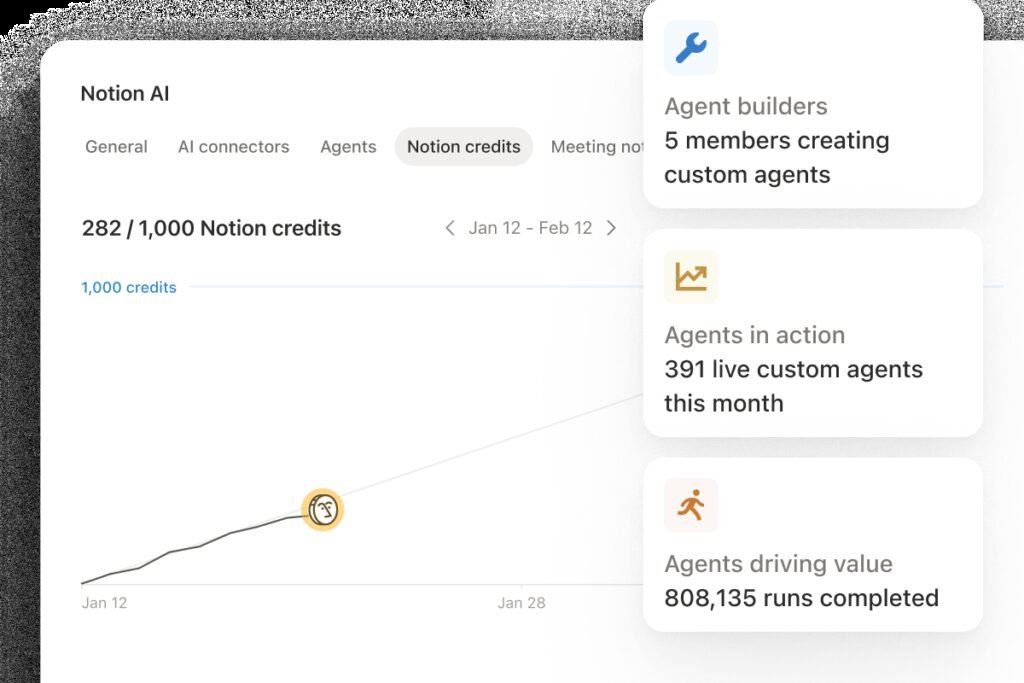
Notion Custom Agents admin control panel, official Notion screenshot.
Step 6: Set Up a Custom Agent
Custom Agents are Notion’s way of automating recurring work instead of re-running a chat prompt manually every week. A Custom Agent can be scheduled or trigger-based, and runs autonomously using the context of your workspace and any connected apps — a common small-business setup is a Monday-morning agent that pulls last week’s tasks and drafts a status update, or an agent that watches a client-intake database and drafts a welcome email whenever a new row is added.
Custom Agents were free to run through May 3, 2026; since then, usage on the Business plan draws from a pay-as-you-go Notion credit balance at $10 per 1,000 credits, so it is worth checking your workspace’s admin settings before turning on a high-frequency agent. Our full Notion AI review covers where Custom Agents sit against Notion’s pricing tiers in more depth.
Common Mistakes
- Asking a broad, open-ended chat question when a page-specific @ mention would give a sharper, source-grounded answer.
- Building a database by hand when ‘Build with AI’ would have generated a working structure in one prompt.
- Turning on a Custom Agent with no schedule review, then being surprised by credit usage once the free period ends.
- Never connecting Slack or Google Drive, so AI search only ever sees a fraction of the business’s actual documents.
- Treating every AI answer as final instead of using it as a first draft to edit — especially for anything client-facing.
Quick Reference Checklist
- Confirm your workspace is on a Business plan or higher; the Free plan only includes limited trial AI.
- Learn the shortcut (Shift+Cmd+J or Shift+Ctrl+J) instead of hunting for the icon every time.
- Connect Slack and Google Drive if AI search should cover more than just Notion pages.
- Try ‘Build with AI’ the next time you create a database instead of building it manually.
- Review Custom Agent credit usage in admin settings before scheduling a high-frequency agent.
- Bookmark the one-click skills (translate, code help) you will actually reuse weekly.
Frequently Asked Questions
Is Notion AI free to use?
Only in a limited trial form on the Free plan (basic document generation and database autofill). Full chat, search, one-click skills, and Custom Agents require a Business plan or higher.
What is the fastest way to open Notion AI?
On the desktop app, press Shift+Cmd+J on Mac or Shift+Ctrl+J on Windows. Otherwise, click the circular AI icon in the bottom-right corner of any page, or open ‘Search’ in the left sidebar for the full chat view.
Can Notion AI search outside of Notion itself?
Yes, if you connect apps like Slack or Google Drive, Notion AI can search across them alongside your Notion pages. You can also narrow a question to one specific source with ‘All sources’ or an @ mention.
What are Notion AI Custom Agents?
Scheduled or trigger-based automations that complete multi-step work on their own using your workspace’s context, rather than requiring you to run a chat prompt manually each time.
Do Notion AI Skills only work inside Notion?
As of Notion 3.7, no. Custom skills can be exported as a portable SKILL.md file and reused inside other AI coding tools such as Claude Code and Cursor, not just inside Notion.
Key Takeaways
- Notion AI is reachable from any page via Shift+Cmd/Ctrl+J or the bottom-right AI icon; the full chat view lives under ‘Search’ in the sidebar.
- Writing, workspace-wide Q&A, database generation (‘Build with AI’), one-click skills, and Custom Agents are the five capabilities worth learning first.
- Connecting Slack and Google Drive substantially widens what AI search can actually answer.
- Full AI features require a Business plan or higher; Custom Agents now draw from a paid credit balance after a free trial period that ended May 3, 2026.
- Notion 3.7 made custom Skills portable outside Notion, exportable to tools like Claude Code and Cursor.
New in October 2026: Notion 3.8 lets outside agents such as Claude connect to your workspace and lets Business plan members use their ChatGPT plan inside Notion Agent.
Still deciding between Notion AI and ChatGPT? Our Notion AI vs ChatGPT comparison breaks down pricing, features and when to use both.
Sources and References
Notion: Everything You Can Do With Notion AI (official help guide)
Notion: Notion AI product page, features and pricing tiers
OpenRush keyword and live SERP data for ‘how to use notion ai’, pulled for this guide
Veyroniq’s own hands-on Notion AI Review (2026)
For the full verdict on pricing, Custom Agents, and whether Notion AI is worth it for a small business specifically, read our Notion AI Review 2026. If you want the latest on portable Skills, see Notion 3.7 Adds Reusable AI Skills, or browse our other Marketing & How-To Guides for more small-business workflows.




Start the discussion