
Learning how to use Gamma AI takes about ten minutes, and most of that is learning where the edits go. This guide walks through the full process in the order you will actually do it: starting a gamma, choosing a mode, writing a prompt, editing, theming and exporting. It is based on Gamma’s own help center, so the menu names match what you will see on screen. If you are still deciding whether the tool is worth paying for, read our full Gamma review first.

Gamma, official brand image.
Step 1: Start a new gamma
Sign in at gamma.app and open your dashboard. Gamma’s help center describes the starting point as the Create New AI button, which opens the generator. Gamma can build a presentation, a document or a webpage, so pick the format that matches what you need before you type anything. For a client pitch or a team update, choose presentation.
Gamma’s own guide on creating a new presentation, document or webpage covers this first screen.
Step 2: Pick a mode
The generator gives you three ways in:
- Generate: type a topic and Gamma drafts a structured gamma. An Advanced Mode option lets you refine the draft before it builds.
- Paste: drop in notes, an outline or text from another source. Gamma formats it into a new layout instead of inventing content, which is the safest option when your facts are already written.
- Import: upload an existing PowerPoint or document, or enter a URL, and Gamma brings the content in with new styling.
For small-business work, Paste and Import are usually better than Generate. You control the facts, and Gamma only handles layout.
Step 3: Write a prompt that works
If you use Generate, a vague prompt gives you generic slides. Include four things: the topic, the audience, the goal of the deck, and the sections you want. For example: “A 10-slide proposal for a local bakery owner, explaining a three-month email marketing plan, with pricing and next steps.”
While generating, Gamma also lets you choose Don’t add images for a text-only gamma, or Image placeholders if you want to drop in your own photos later. Placeholders are a good choice when you have real product photos, since stock imagery tends to look generic.
Step 4: Edit with AI
Do not treat the first output as finished. Plan on ten to fifteen minutes of editing. Gamma’s help center says the sparkle icon at the top-left of a slide edits that slide with AI, and the sparkle icon at the top-right edits several slides at once, which is a Pro feature. Typical edits that save time:
- Shorten any slide with more than a few lines of text.
- Replace weak images with your own photos or screenshots.
- Check every number, name and claim against your source. AI-built slides can contain wrong details.
Step 5: Set your theme
Select Theme in the upper right of your gamma to change fonts, colors and styling. Gamma notes that theme changes are manual for now, so expect to click through a few presets until one fits your brand. Keep to one or two fonts and your brand colors so the deck looks like it came from your business, not from a template.
Step 6: Export or share
Gamma’s export guide gives the exact path: click Share at the top right, then Export, or use the three-dot menu and choose Export. Then:
- Choose All cards in the dropdown so you export the whole gamma, not one slide.
- Pick PDF, PNG or PowerPoint (PPTX).
- Optionally adjust the Image quality slider, and for PowerPoint, the Editable tables toggle, which is on by default.
- Download the file. Gamma also emails you a copy.
For Google Slides, export to PPTX and upload that file. For a Word file, Gamma says .docx export is not supported on any plan, so export a PDF and convert it.
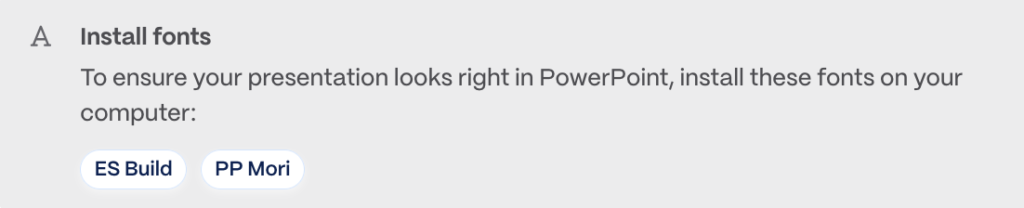
Screenshot from Gamma’s Help Center export article. Image: Gamma.
Free plan watermark: PDF and PPTX exports from a Free workspace carry a “Made by Gamma” badge. Plus, Pro and Ultra plans remove it on future exports, but not retroactively. Gamma’s help center says printing from your signed-in editor does not add the badge.
Common mistakes
- Expecting the export to match the editor. Gamma says exports reflect Present Mode, not Edit Mode, so gradient headings can turn a single color, tables have sharp corners in PowerPoint, and PowerPoint and Google Slides files have no slide master. Check the file before sending it to a client.
- Opening a PPTX in Google Slides and blaming Gamma for the fonts. Google Slides ignores embedded fonts, which is the most common cause of font swaps.
- Missing backgrounds. A page background set in the theme editor may not appear in PDF or PPTX exports. Set it per card, or export as PNG.
- Exporting a huge gamma in one go. Gamma suggests splitting gammas of roughly 150 or more slides into sections if exports fail.
- Not reading the plan limits. Features like multi-slide AI editing are paid, so check the pricing section of our Gamma review before building a workflow around them.
FAQ
Considering ChatGPT for presentations instead? Read our news story on ChatGPT Slides, OpenAI’s new deck builder, and how it compares with Gamma.
Sources and References
- Gamma Help Center: How do I create a new presentation, document, or webpage in Gamma?
- Gamma Help Center: What’s the easiest way to export my Gamma?
- Gamma Help Center: Why doesn’t my exported PDF or PowerPoint match what I see in Gamma?
- MindStudio: How to use Gamma AI to create professional presentations (workflow tips)
Want the full verdict on pricing, credits and support before you commit? Read our Gamma Review 2026.



Start the discussion